
1. Introduction
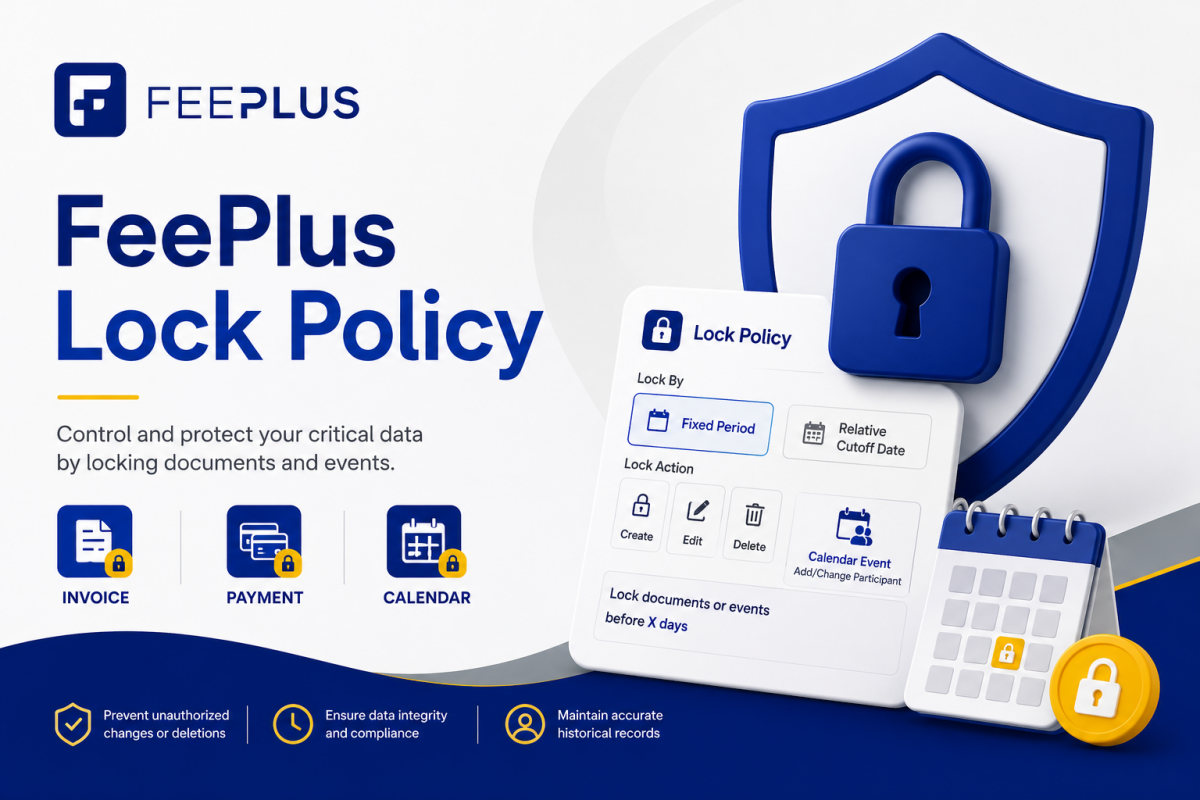
Lock Policies in FeePlus allow businesses to control when certain financial or calendar actions can be performed.
They help prevent:
- Backdated invoices
- Late payment edits
- Unauthorized event changes
- Post‑event attendance manipulation
- Month‑end or period‑end data tampering
Lock Policies apply to Invoice, Payment, and Calendar Events, and are managed from:
Business Settings → Financial → Invoice / Payment
Business Settings → Calendar → Lock Policy
Need help configuring a Lock Policy for a specific business situation?
See the FeePlus Lock Policy: Admin Training Guide for step-by-step scenarios, including month-end invoice locks, preventing backdated invoices, payment controls, event attendance cutoffs, and manager overrides.
2. Lock Policy Concepts
FeePlus supports two types of lock rules:
A. Fixed Period Lock
A specific date range is locked.
Example:
Locked from 2026‑07‑01 to 2026‑07‑31
Actions falling inside this period are blocked.
Use cases:
- Month‑end closing
- Tax periods
- Semester/term closing
- Financial audit windows
B. Relative Cutoff Lock
Actions are locked based on how old the record is.
Example:
Locked for records older than 5 days
(before 2026‑08‑16)
Use cases:
- Prevent backdated invoices
- Prevent late payment edits
- Prevent changing event participation after event ends
- Prevent modifying attendance after X days
3. Where Lock Policies Are Configured
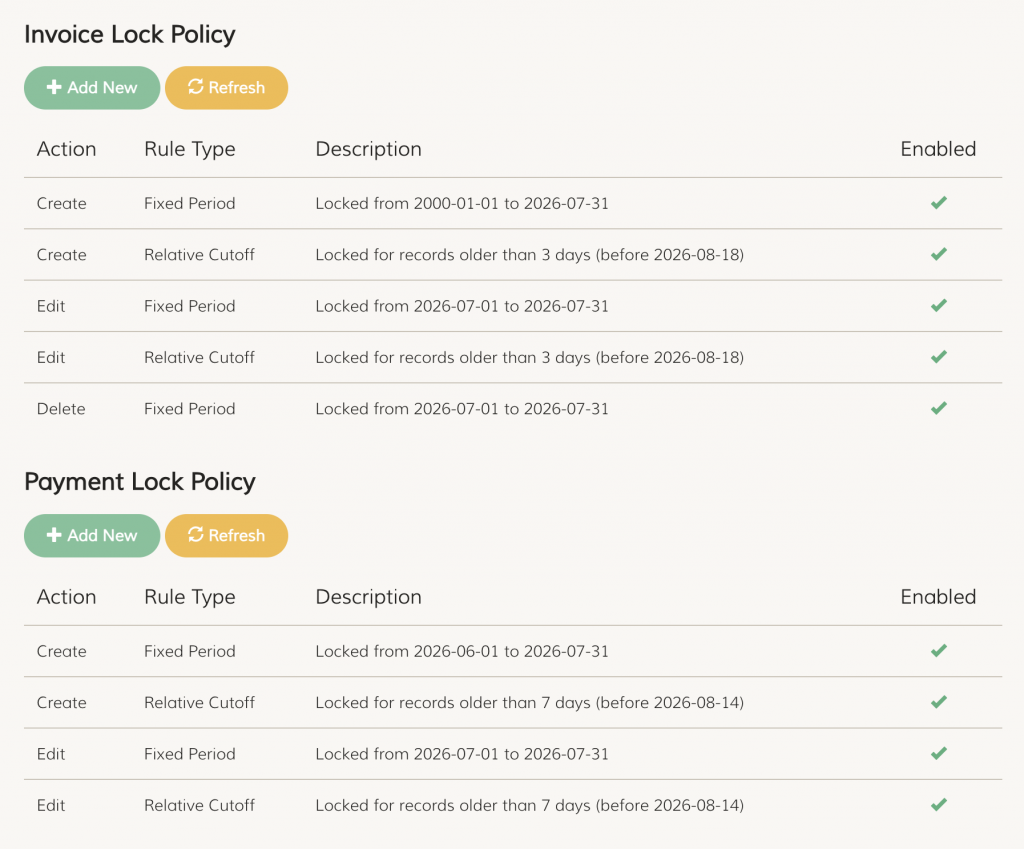
Financial → Invoice Lock Policy
Controls:
- Invoice Create
- Invoice Edit
- Invoice Delete
Financial → Payment Lock Policy
Controls:
- Payment Create
- Payment Edit
- Payment Delete
Calendar → Calendar Lock Policy
Controls:
- Event Create
- Event Edit
- Event Delete
- Add Participant
- Change Participant
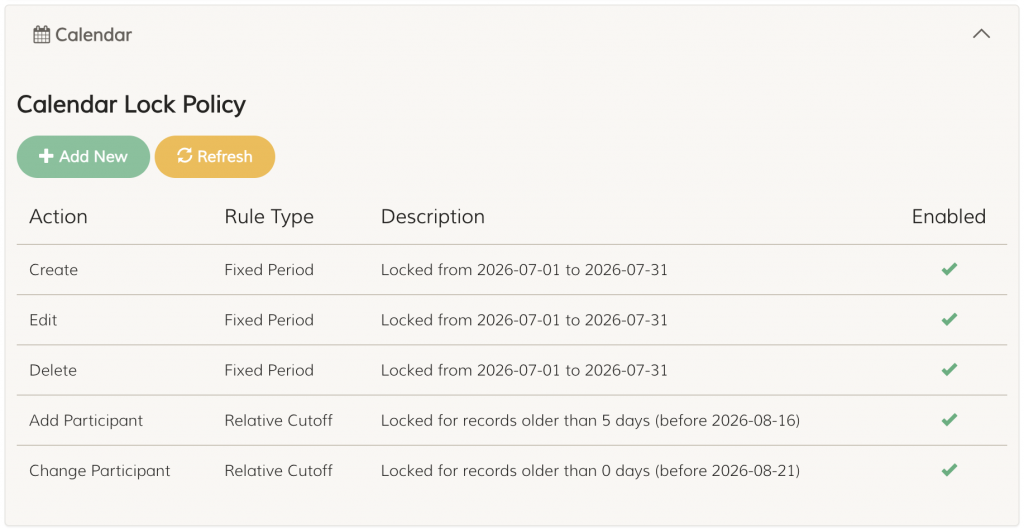
Each module has its own table showing:
- Action
- Rule Type
- Description
- Enabled status
4. Understanding Lock Actions
Invoice Lock Actions
| Action | Description |
| Create | Prevent creating invoices on locked dates or older than cutoff |
| Edit | Prevent editing invoices inside locked periods or after cutoff |
| Delete | Prevent deleting invoices inside locked periods |
Payment Lock Actions
| Action | Description |
| Create | Prevent creating payments on locked dates or older than cutoff |
| Edit | Prevent editing payments inside locked periods or after cutoff |
| Delete | Prevent deleting payments inside locked periods |
Calendar Event Lock Actions
| Action | Description |
| Create | Prevent creating events on locked dates |
| Edit | Prevent editing events inside locked periods |
| Delete | Prevent deleting events inside locked periods |
| Add Participant | Prevent adding participants after cutoff or after event ends |
| Change Participant | Prevent changing participation after cutoff or after event ends |
5. Adding a Lock Policy (Modal UI)
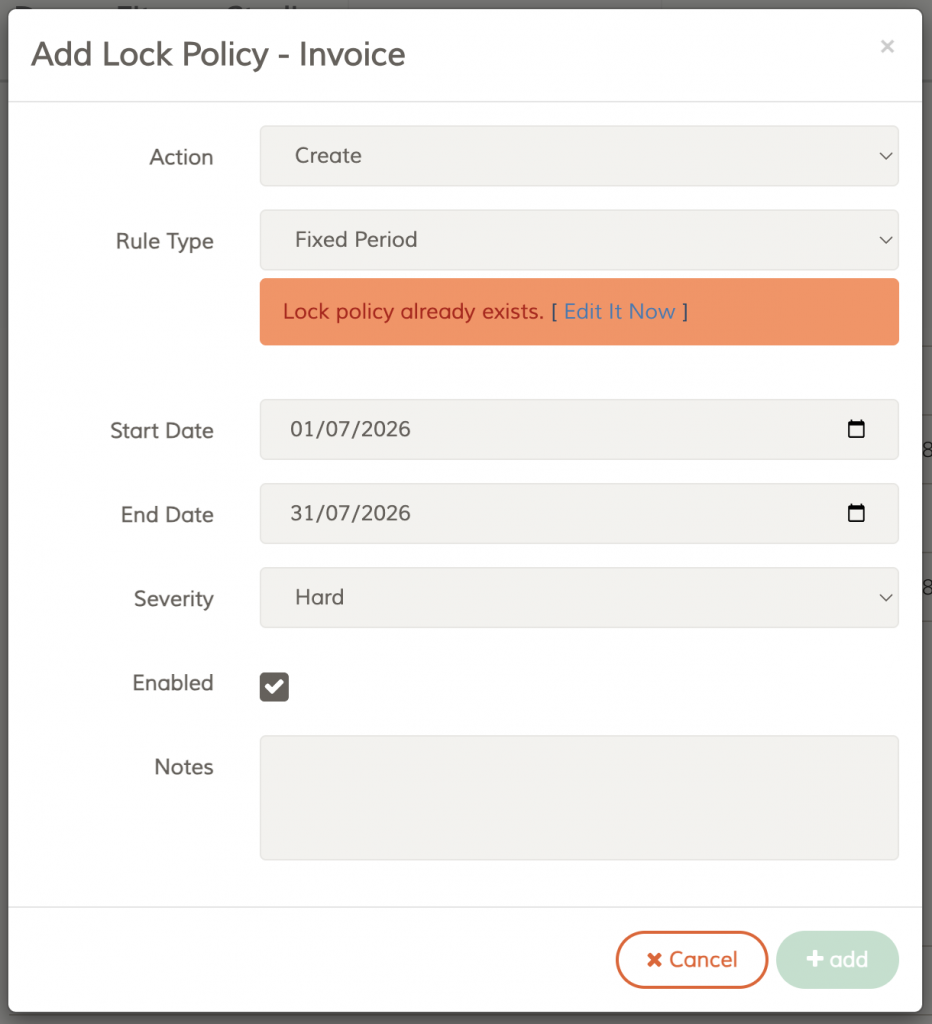
When you click Add New, you will see a modal with:
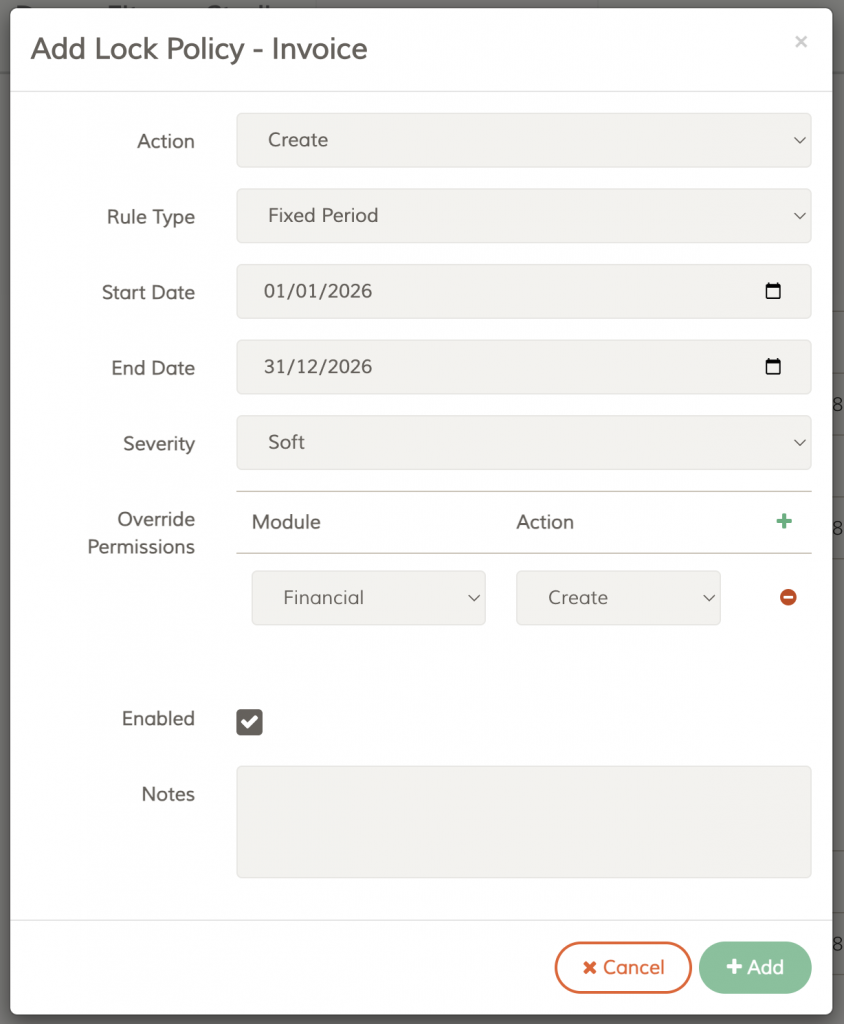
A. Action
Choose what action to lock:
- Create
- Edit
- Delete
- Add Participant
- Change Participant
B. Rule Type
Choose lock type:
- Fixed Period → Start Date + End Date
- Relative Cutoff → Lock Before X days
C. Severity
- Soft → User sees warning but can override
- Hard → No override allowed
D. Override Permissions
Define which roles/modules can override the lock.
Example:
- Module: Financial
- Action: Edit
This means users with Financial‑Edit permission can override the lock.
E. Enabled
Turn the lock on/off.
F. Notes
Optional internal notes for admins.
Duplicate Detection
If a lock already exists for the same action + rule type, FeePlus shows:
Lock policy already exists. [Edit It Now]
6. How Lock Alerts Work (UI Behavior)
When a user performs an action that is locked:
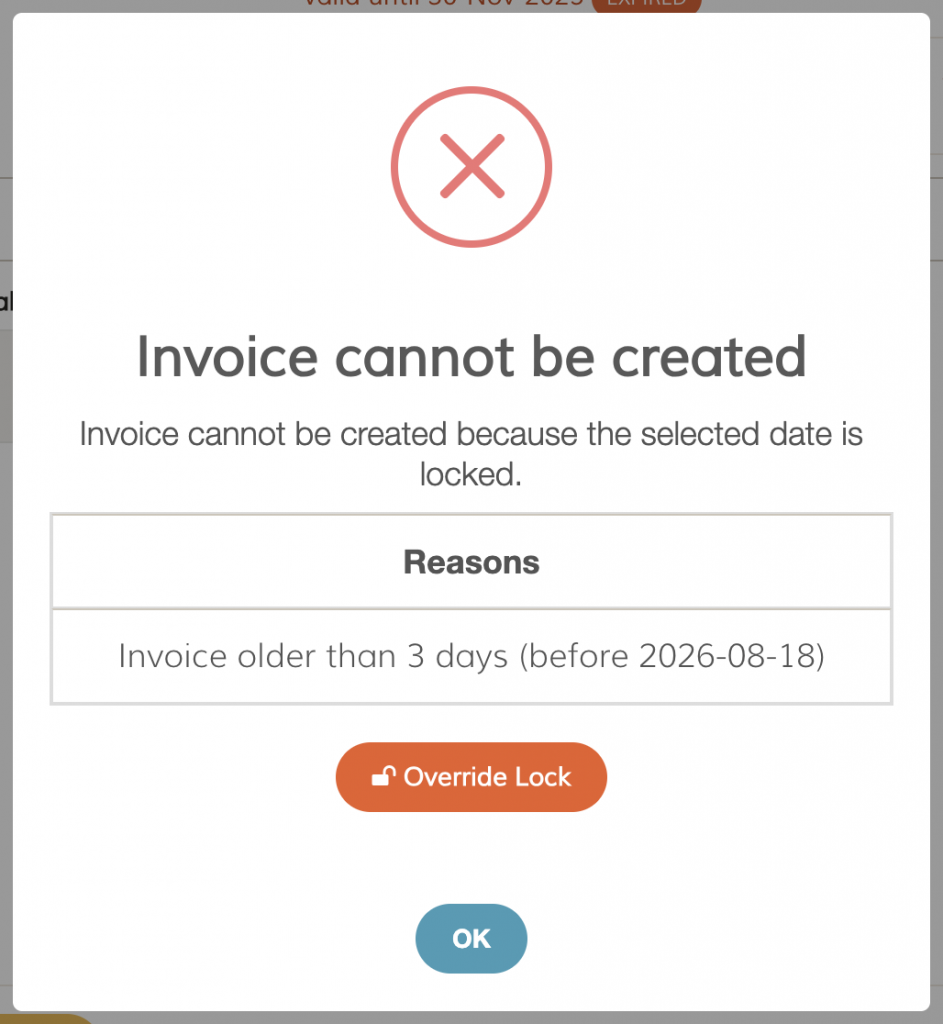
A. Soft Lock
User sees:
- A lock message
- A lock code
- An Override button (if overriding is allowed)
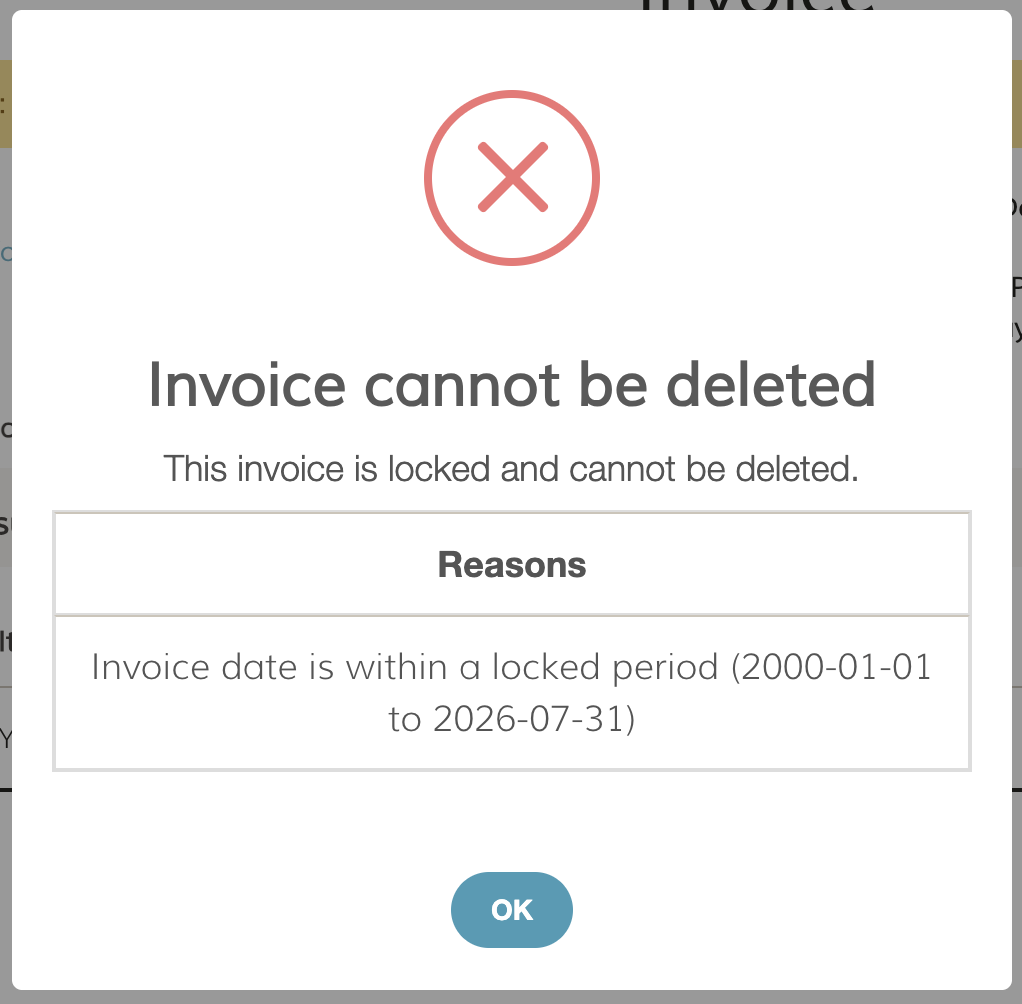
B. Hard Lock
User sees:
- A lock message
- A lock code
- No override button
Lock Message Examples
- Invoice cannot be created because the invoice date is locked.
- Payment cannot be edited because the payment is locked.
- Participation cannot be changed because the event instance is locked.
Lock Details
The UI also shows:
- Lock type
- Date range or cutoff
- Reason
- Severity
7. Override Flow
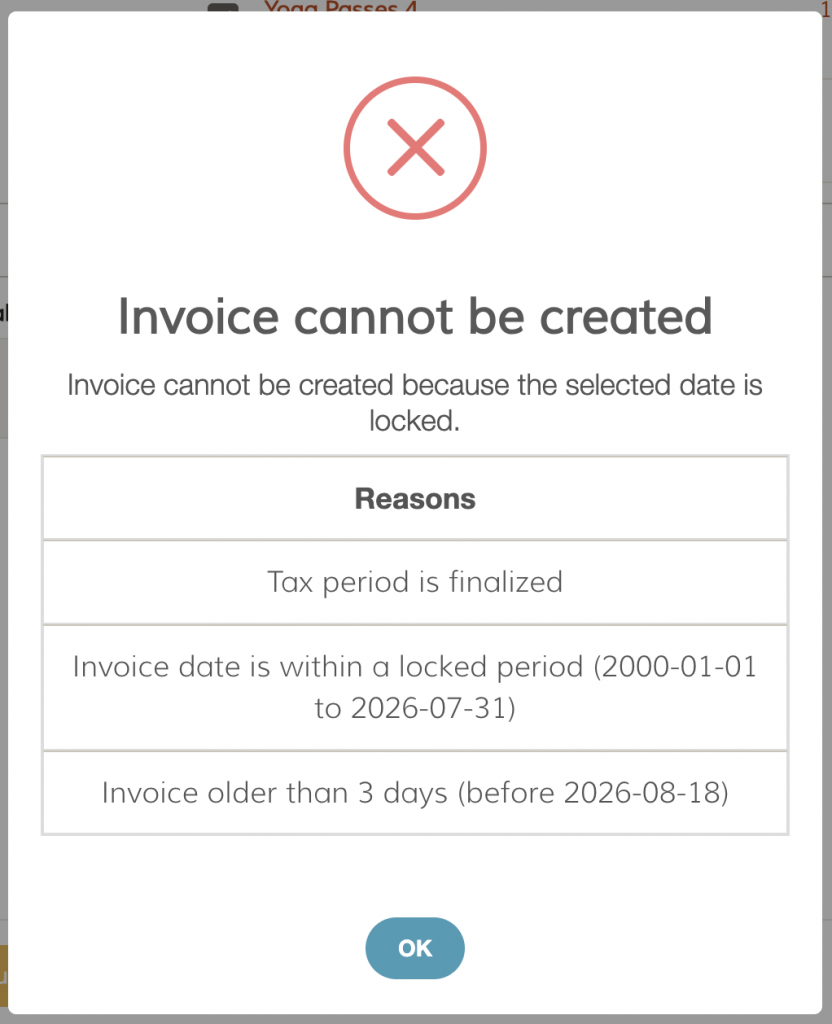
FeePlus supports override for soft‑severity lock policies, but only when no other hard lock is active.
A user may override a lock only if all conditions below are met:
- The lock policy is soft, and
- The user has the required override permission, and
- There is no other hard lock triggered by:
- A user‑defined hard-severity lock policy
- A system‑enforced lock such as:
- Finalized tax period
- E‑invoice validated invoice
- Settled payment
- Any other system‑coded hard lock
When any hard lock is present, the Override Lock button will not appear, even if a soft lock also applies.
If the lock allows override but the user does not have the required permission, the user will see:
You do not have permission to override this lock.
8. Best Practices for Businesses
Financial
- Use Fixed Period for month‑end closing
- Use Relative Cutoff to prevent backdated invoices/payments
- Use Hard locks for tax periods
Calendar
- Use Relative Cutoff for participation changes
- Use Fixed Period for event creation/editing restrictions
- Use Hard locks for events that must not be altered after completion
9. Summary
FeePlus Lock Policies give businesses precise control over financial and calendar actions.
With:
- Fixed Period
- Relative Cutoff
- Soft/Hard severity
- Override permissions
- Clear UI alerts
❓ FAQ
Because another hard lock is active.
Hard locks cannot be overridden.
This includes:
- Finalized tax periods
- E‑invoice validated invoices
- Settled payments
- Event instances that have ended
- Hard‑severity lock policies created by admins
When a hard lock is triggered, override is disabled even if a soft lock also applies.