
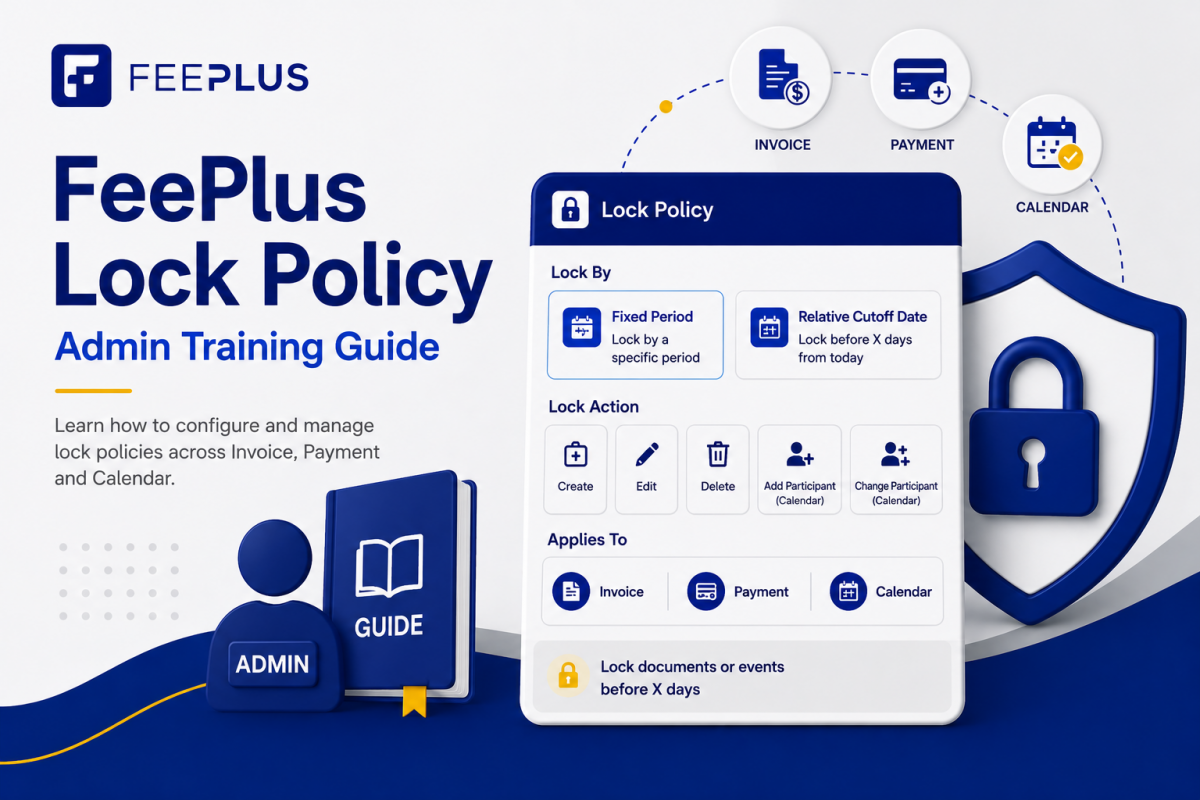
This guide helps administrators configure Lock Policies for common business scenarios, such as month-end closing, audit controls, late-payment restrictions, and event attendance cutoffs.
Use this guide when you know the outcome you want and need to decide which lock settings to use.
Each Lock Policy applies to one action only. To restrict multiple actions—such as Edit and Delete—you must create a separate policy for each action.
For a full explanation of Lock Policy concepts, see the [FeePlus Lock Policy guide].
Table of Contents
- Lock invoices after month-end
- Prevent backdated invoices
- Prevent editing or deleting payments after reconciliation
- Lock event attendance changes after the event day
- Lock completed events from being changed
- Allow managers to override a lock
- Use a hard lock for audit or tax controls
Before You Begin
Lock Policies are configured in:
- Business Settings → Financial → Invoice Lock Policy
- Business Settings → Financial → Payment Lock Policy
- Business Settings → Calendar → Calendar Lock Policy
When adding a policy, you will choose:
- Action — Create, Edit, Delete, Add Participant, or Change Participant
- Rule Type — Fixed Period or Relative Cutoff
- Severity — Soft or Hard
- Override Permissions — the module permission required to override a Soft Lock. Ensure this permission is granted only to authorised administrators or managers
- Enabled — whether the policy is active
Scenario 1: Lock Invoices After Month-End
Use this when
You have completed the accounts for a month and want to prevent invoices in that period from being changed or deleted.
Recommended settings
| Setting | Recommendation |
|---|---|
| Module | Invoice Lock Policy |
| Rule Type | Fixed Period |
| Period | First to last day of the closed month |
| Actions | Edit and Delete |
| Severity | Hard for completed/audited periods; Soft if managers may correct exceptions |
Example
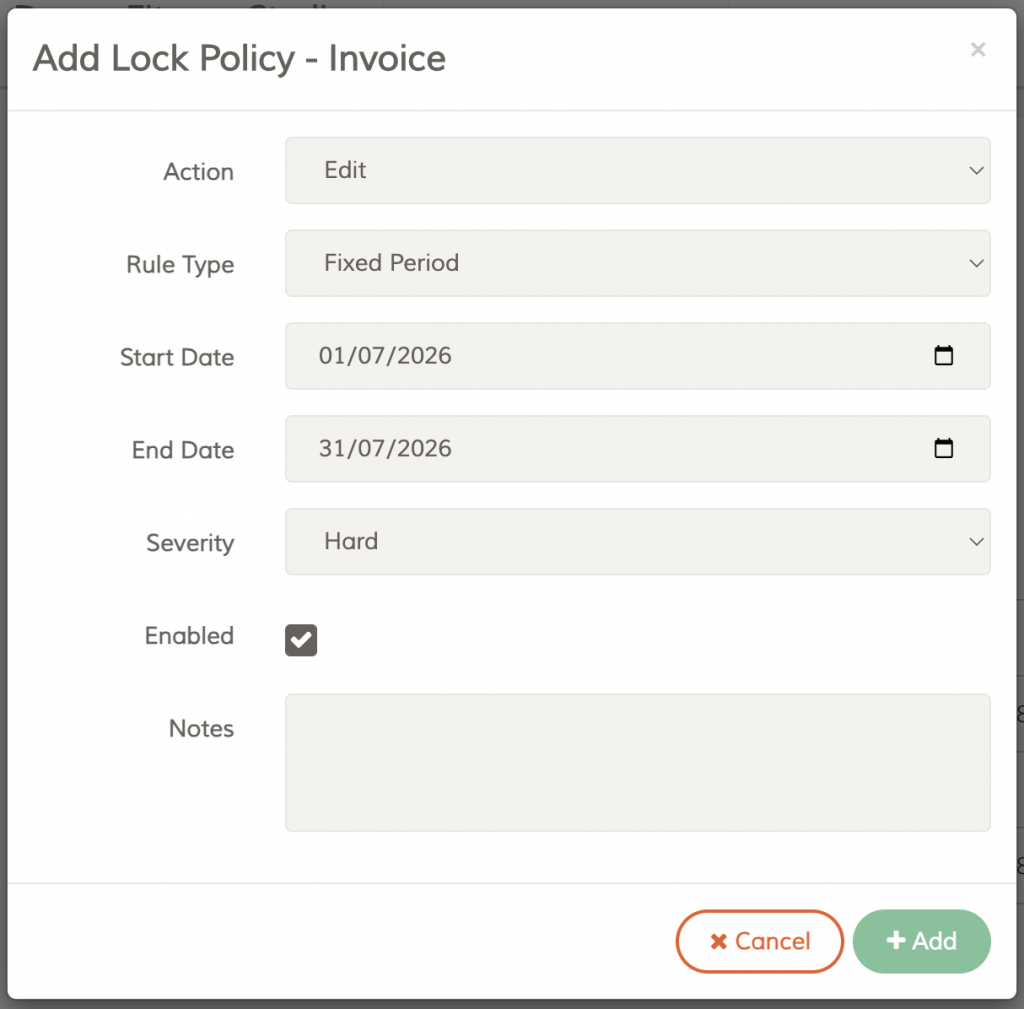
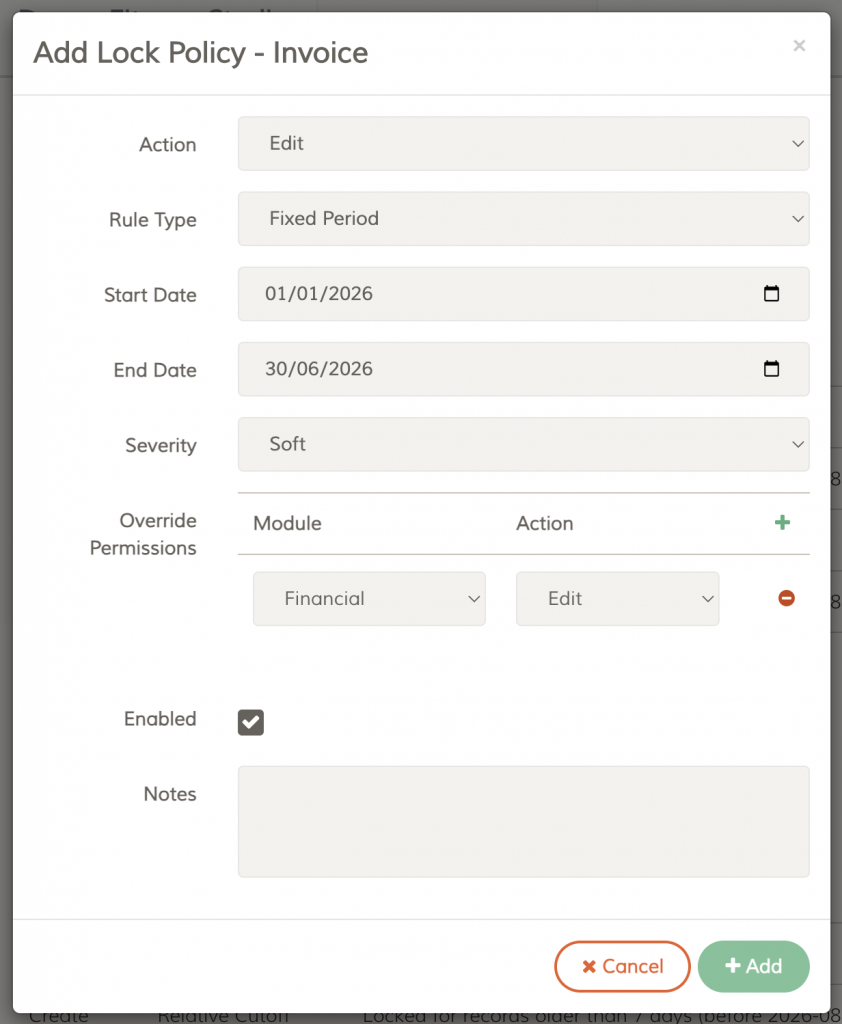
To lock July 2026:
- Action: Edit
- Rule Type: Fixed Period
- Start Date: 1 July 2026
- End Date: 31 July 2026
- Severity: Hard
Create a second policy for Delete if invoice deletion must also be blocked.
Important: Create separate policies for Edit and Delete. A policy applies to one action at a time.
Scenario 2: Prevent Backdated Invoices
Use this when
You want users to create invoices only within a recent period—for example, no more than five days in the past.
Recommended settings
| Setting | Recommendation |
|---|---|
| Module | Invoice Lock Policy |
| Rule Type | Relative Cutoff |
| Action | Create |
| Cutoff | Your allowed backdating period, such as 5 days |
| Severity | Soft or Hard, depending on your approval process |
Example
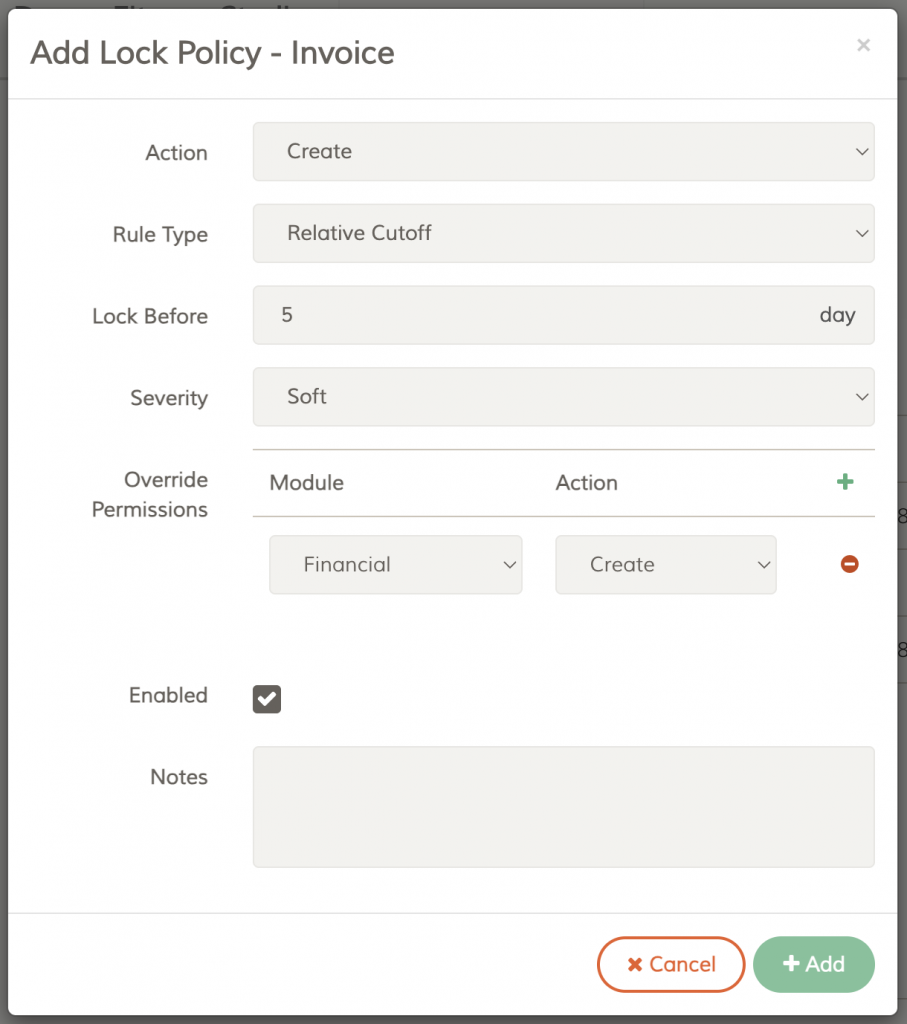
To prevent invoices dated more than five days ago:
- Action: Create
- Rule Type: Relative Cutoff
- Lock Before: 5 days
- Severity: Soft
- Override Permission: Financial → Create, for authorised finance users
Users can still create current invoices, but invoices dated before the cutoff are locked.
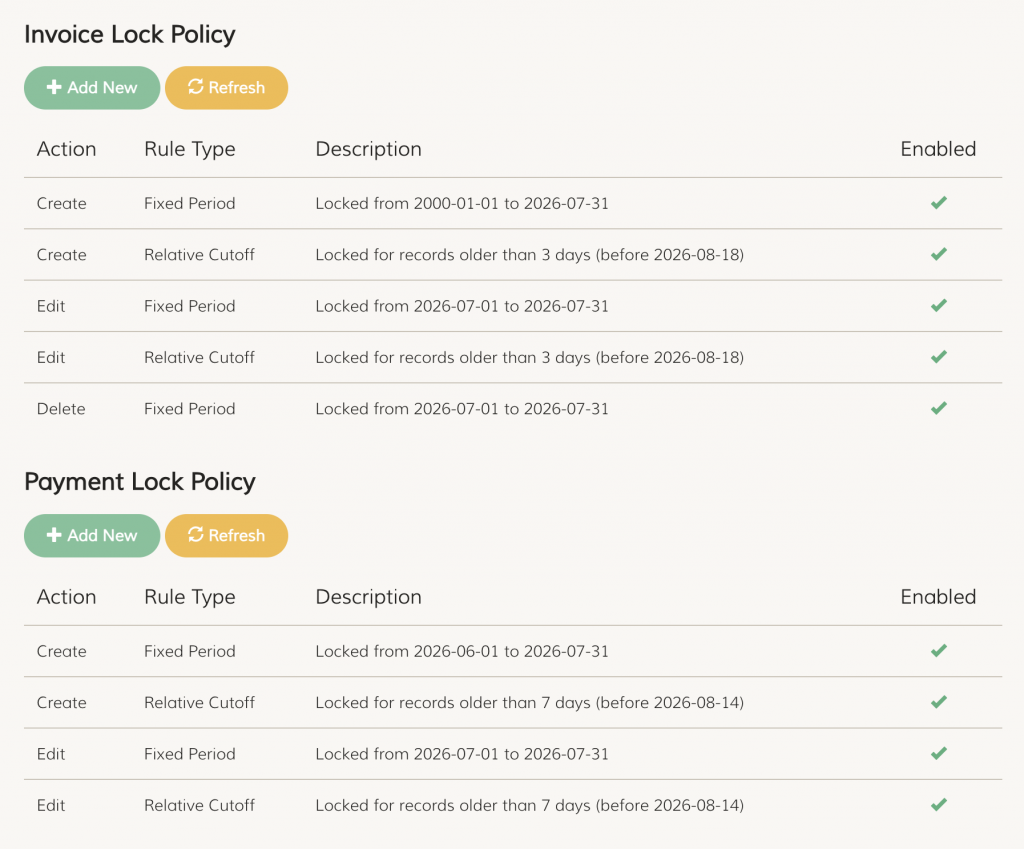
Scenario 3: Prevent Editing or Deleting Payments After Reconciliation
Use this when
Payments have been reviewed, reconciled, or reported and should no longer be changed.
Recommended settings
| Setting | Recommendation |
|---|---|
| Module | Payment Lock Policy |
| Rule Type | Fixed Period or Relative Cutoff |
| Actions | Edit and Delete |
| Severity | Hard for reconciled periods |
Choose the rule type
- Use Fixed Period when closing a known accounting period, such as a completed month.
- Use Relative Cutoff when payments should automatically become uneditable after a number of days.
Example
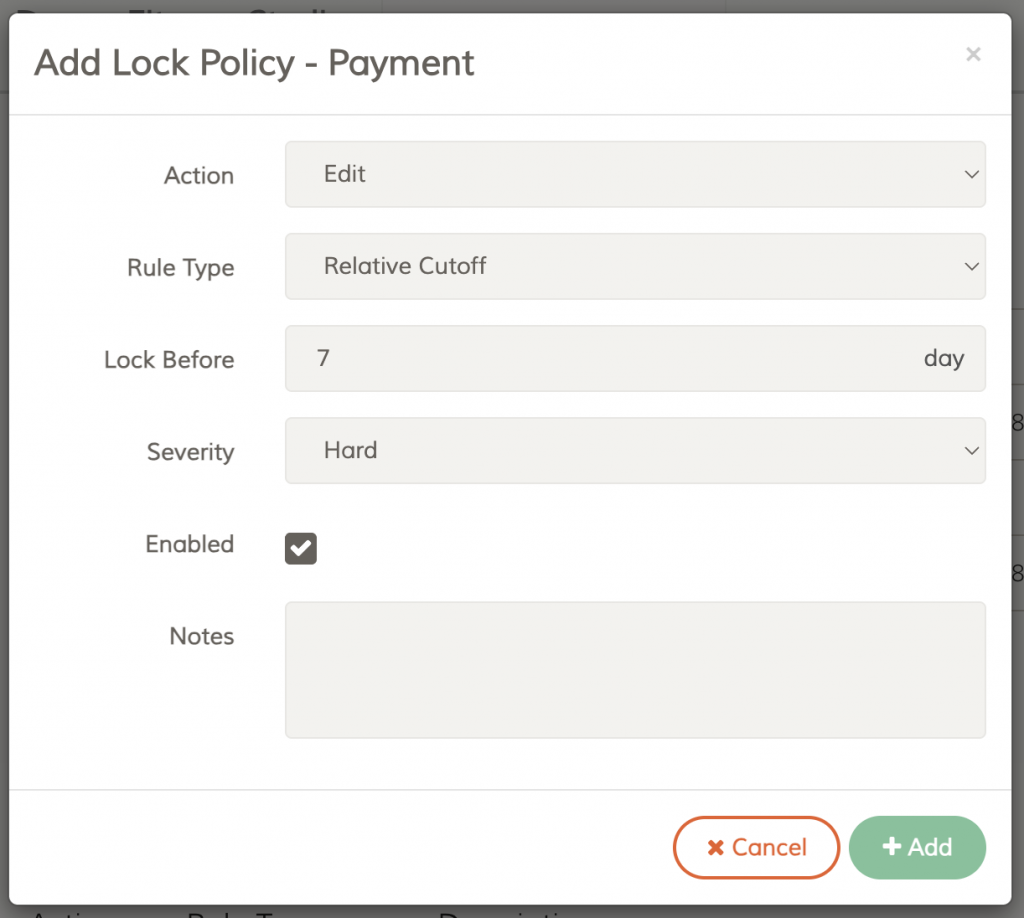
To prevent payment changes after seven days:
- Action: Edit
- Rule Type: Relative Cutoff
- Lock Before: 7 days
- Severity: Hard
Create another policy for Delete if payment deletion must also be prevented.
Scenario 4: Lock Event Attendance Changes After the Event Day
Use this when
Attendance or participant records should not be changed after an event has ended or after a defined number of days.
Recommended settings
| Setting | Recommendation |
|---|---|
| Module | Calendar Lock Policy |
| Rule Type | Relative Cutoff |
| Actions | Add Participant and Change Participant |
| Severity | Soft for manager-reviewed exceptions; Hard for final attendance records |
Example: Prevent Teachers From Changing Attendance After the Event Day
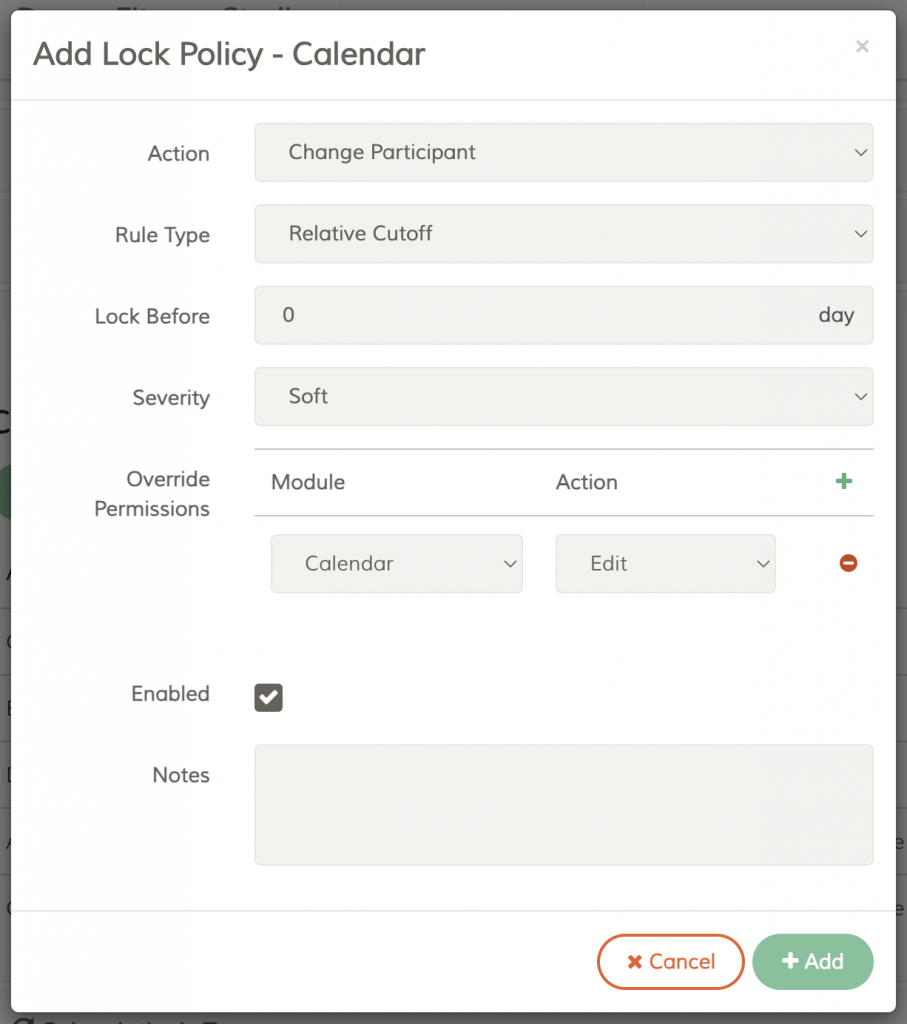
To stop teachers from changing attendance after the event day, while allowing administrators to handle exceptions:
- Action: Add Participant
- Rule Type: Relative Cutoff
- Lock Before: 0 days
- Severity: Soft
- Override Permission: Calendar → Edit (administrators only)
Create a second policy with the same settings for:
- Action: Change Participant
Teachers without the Calendar → Edit permission will see the lock message and cannot override it. Administrators with that permission can select Override Lock when a legitimate attendance correction is needed.
If attendance must never be changed after the event day, set the Severity to Hard instead. No user will be able to override the lock.
Scenario 5: Lock Completed Events From Being Changed
Use this when
An event is completed and its date, details, or attendance record must remain unchanged.
Recommended settings
| Action | Why lock it? |
|---|---|
| Edit | Prevent changes to event details, including cancellation, rescheduling, or changes to the event instance location |
| Delete | Prevent removal of the event record |
| Add Participant | Prevent late attendance additions |
| Change Participant | Prevent edits to participation status |
For high-control events, create a hard lock for each applicable action.
Tip: Use a Relative Cutoff if the lock should happen automatically after the event is completed. Use a Fixed Period if you need to lock a specific event date range.
Create policies only for the actions you need to restrict. For example, locking Event Edit does not automatically lock attendance changes; Add Participant and Change Participant require their own policies.
Scenario 6: Allow Managers to Override a Lock
Use this when
Most users should be blocked, but selected administrators or finance managers may handle genuine exceptions.
Recommended settings
- Severity: Soft
- Add the appropriate Override Permission
- Confirm that the intended user has that permission
A user can override only when:
- The applicable policy is a Soft Lock.
- The user has the required override permission.
- No Hard Lock is also active.
A finalized tax period, validated e-invoice, settled payment, or another system-enforced lock may prevent the Override Lock button from appearing.
Important: A Soft Lock does not automatically allow an override. The user must also have the required override permission, and no Hard Lock or system-enforced restriction may apply.
Scenario 7: Use a Hard Lock for Audit or Tax Controls
Use this when
Changes must never be made after a period is finalized, audited, submitted, or approved.
Recommended settings
| Business need | Recommended configuration |
|---|---|
| Month-end audit close | Fixed Period + Hard Lock |
| Tax reporting period | Fixed Period + Hard Lock |
| Prevent post-reconciliation payment changes | Relative Cutoff + Hard Lock |
| Final event attendance record | Relative Cutoff + Hard Lock |
Hard Locks do not allow an override. Use them only when exceptions must be handled through a separate formal process.
Admin Checklist Before Enabling a Policy
Before saving a new Lock Policy, confirm:
- The correct module and action are selected.
- The period or cutoff is correct.
- Soft or Hard severity matches your business process.
- Override permissions are assigned only to appropriate roles.
- The policy does not duplicate an existing rule.
- You have tested the outcome using a non-production or test record where possible.
Common Questions
Should I use Fixed Period or Relative Cutoff?
Use Fixed Period for known dates, such as month-end, tax periods, or audit windows.
Use Relative Cutoff for rolling controls, such as preventing changes older than five days.
Why is the Override Lock button missing?
The user may not have the required permission, the policy may be a Hard Lock, or another Hard Lock/system-enforced restriction may apply.
Do I need separate policies for Edit and Delete?
Yes. Each policy applies to one action, so configure separate rules for every action you want to control.