
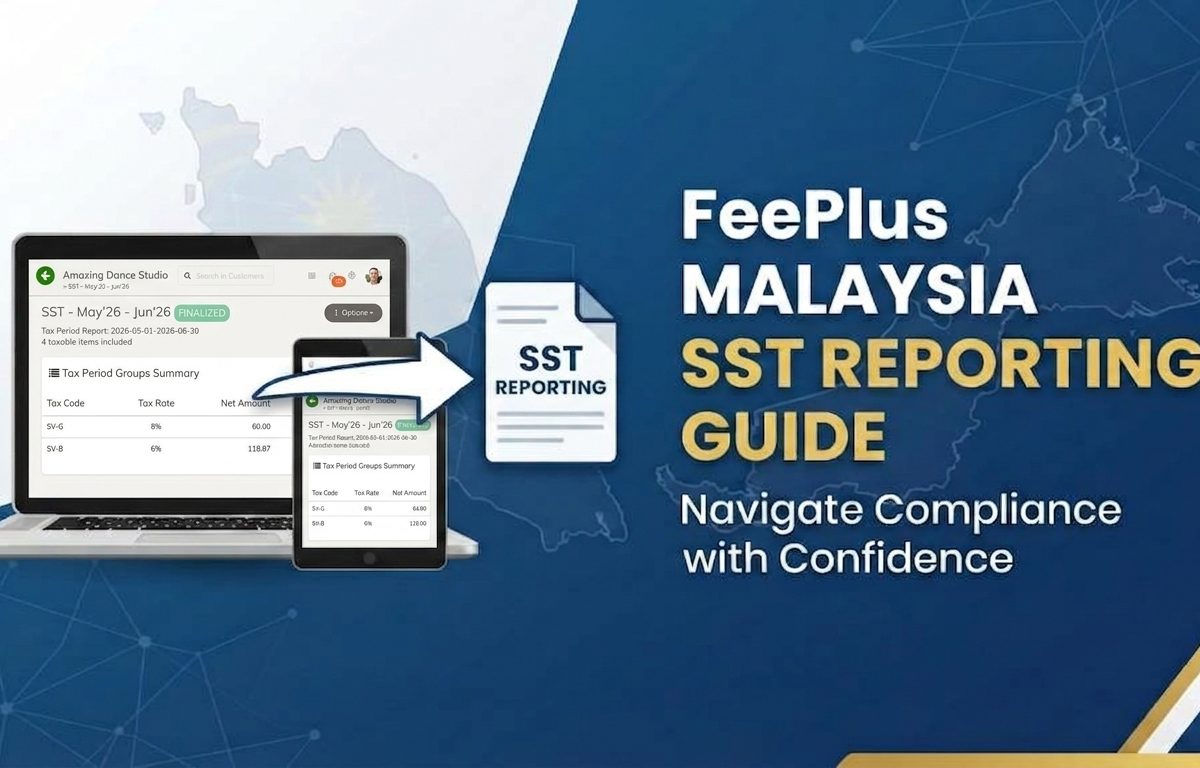
Tax Scheme Settings + SST Tax Period Workflow
1. Introduction
Malaysia’s Sales & Service Tax (SST) requires businesses to report taxable sales or services every two months. FeePlus provides a complete SST workflow that ensures:
- Correct SST period cycles
- Accurate tax code and tax rate validation
- Clean warnings before finalization
- SST report and raw data export
- Compliance with Malaysia’s SST submission requirements
This guide explains both parts of the SST system:
- SST Tax Scheme Settings — the configuration that controls how SST periods behave
- SST Tax Period Workflow — the operational steps for preparing and finalizing SST periods
Together, they form the full Malaysia SST reporting process in FeePlus.
The foundation of your SST reporting workflow
The SST Tax Scheme Settings define how FeePlus generates SST periods, validates tax data, and ensures compliance.
A1. Accessing Tax Scheme Settings
- Open FeePlus
- Navigate to Tax → Settings
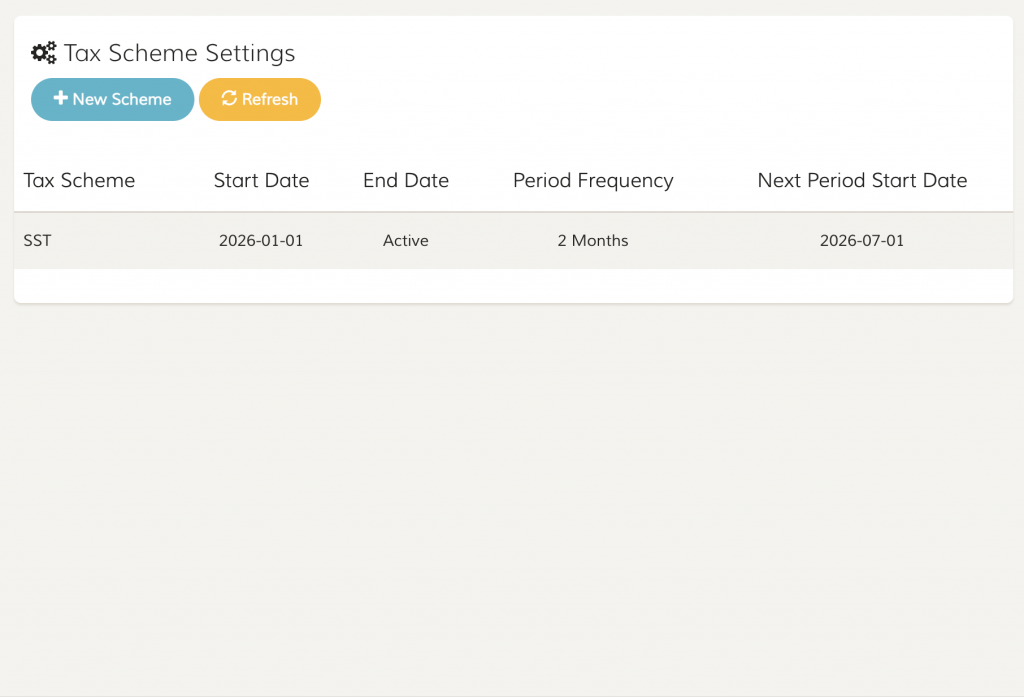
FeePlus will display the Tax Scheme Settings list page, where you can view all configured tax schemes, including:
- Tax Scheme (SST)
- Start Date
- End Date
- Period Frequency
- Next Period Start Date
A1.1 Creating a New SST Scheme
Click New Scheme to setup your SST scheme, start date, and personalized title format.
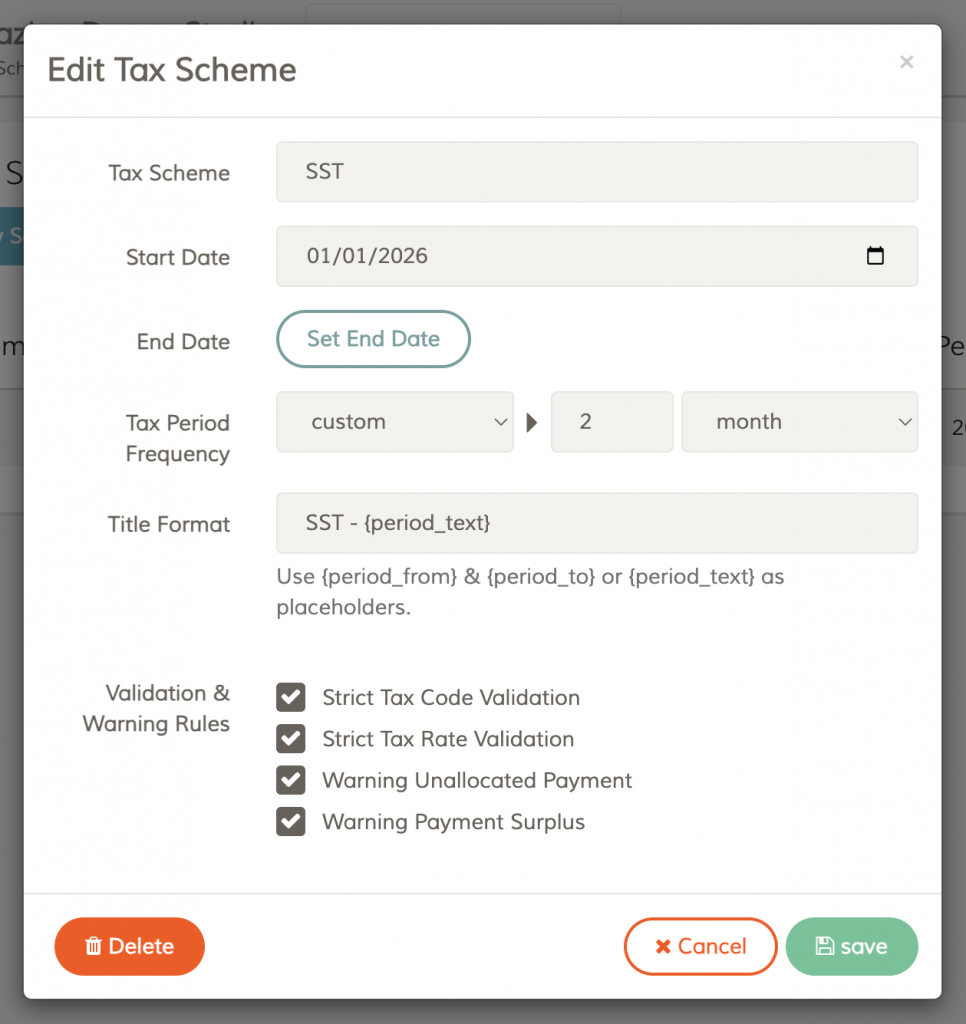
A2. Key SST Configuration Fields
1. Tax Scheme: SST
This identifies the scheme as Malaysia’s Sales & Service Tax.
2. Start Date
The date SST reporting begins for your business.
Example: 01/01/2026
3. End Date
Usually set to Active unless SST reporting ends.
4. Tax Period Frequency: 2 Months
This is the most important SST setting.
It defines Malaysia’s official SST cycles:
- Jan–Feb
- Mar–Apr
- May–Jun
- Jul–Aug
- Sep–Oct
- Nov–Dec
FeePlus uses this to automatically calculate:
- The next SST period
- The correct period boundaries
- The correct title format
5. Title Format
Example:
SST – {period_text}
FeePlus automatically generates titles like:
- SST – Jan’26 – Feb’26
- SST – Mar’26 – Apr’26
This ensures consistent naming for reports and submission.
A3. Validation & Warning Rules
These rules ensure SST compliance and help detect issues before finalizing a tax period:
Strict Tax Code Validation
Flags any record that contains a tax rate but does not have a corresponding SST tax code.
Strict Tax Rate Validation
Prevents invoice line items from using a zero SST percentage when an SST tax code is applied.
Warning Unallocated Payment
Detects payments that are not linked to any invoice, but only when:
- an SST Tax Code with Payment Tax Point Basis used, and
- the payment date falls within the selected SST period.
Warning Payment Surplus
Detects payments where the paid amount exceeds the invoice amount, but only when:
- an SST Tax Code with Payment Tax Point Basis used, and
- the payment date falls within the selected SST period.
These rules directly affect the warnings shown during SST period preparation and review.
A4. Next Period Start Date
FeePlus automatically calculates the next SST cycle based on:
- Start Date
- Period Frequency
Example:
Next Period Start Date: 2026‑07‑01
This ensures SST periods follow Malaysia’s official reporting calendar.
Part B — SST Tax Period Workflow (Malaysia)
How to prepare, review, finalize, and export SST periods
How to prepare, review, finalize, and export SST periods
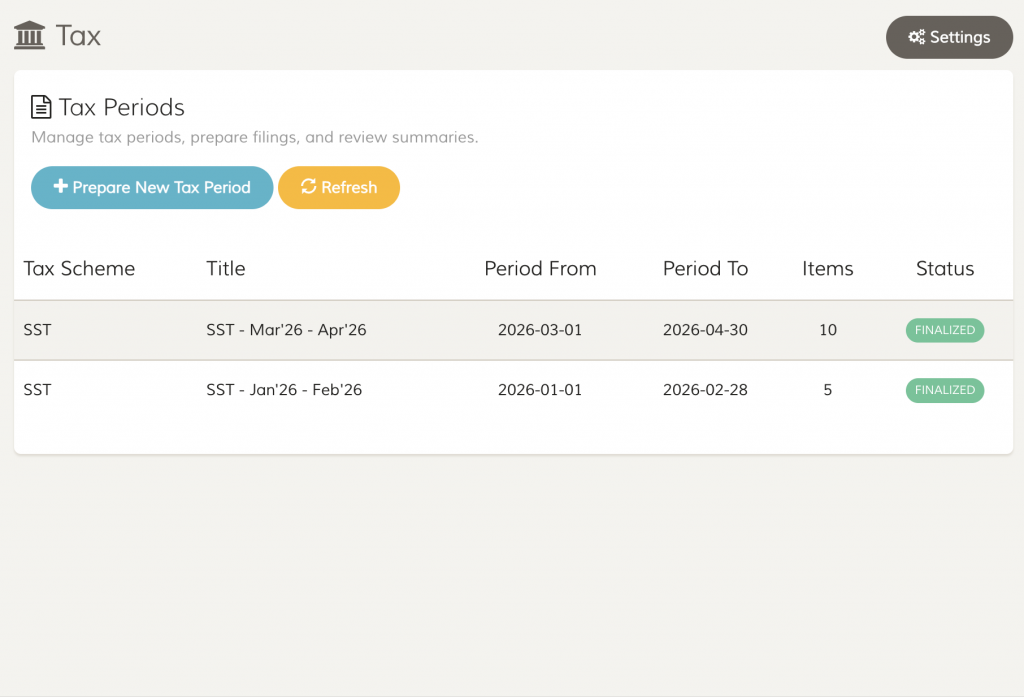
B1. Accessing SST Tax Periods
- Go to Tax → Tax Periods
- You will see all SST periods with:
- Tax Scheme
- Title
- Period From / To
- Number of Items
- Status (PREPARED / FINALIZED)
This is your SST reporting dashboard.
B2. Creating a New SST Period
Click Prepare New Tax Period.
You will see the following fields:
- Tax Scheme: SST
- Title: Auto‑generated
- Start Date: First day of the SST cycle
- End Date: Last day of the SST cycle
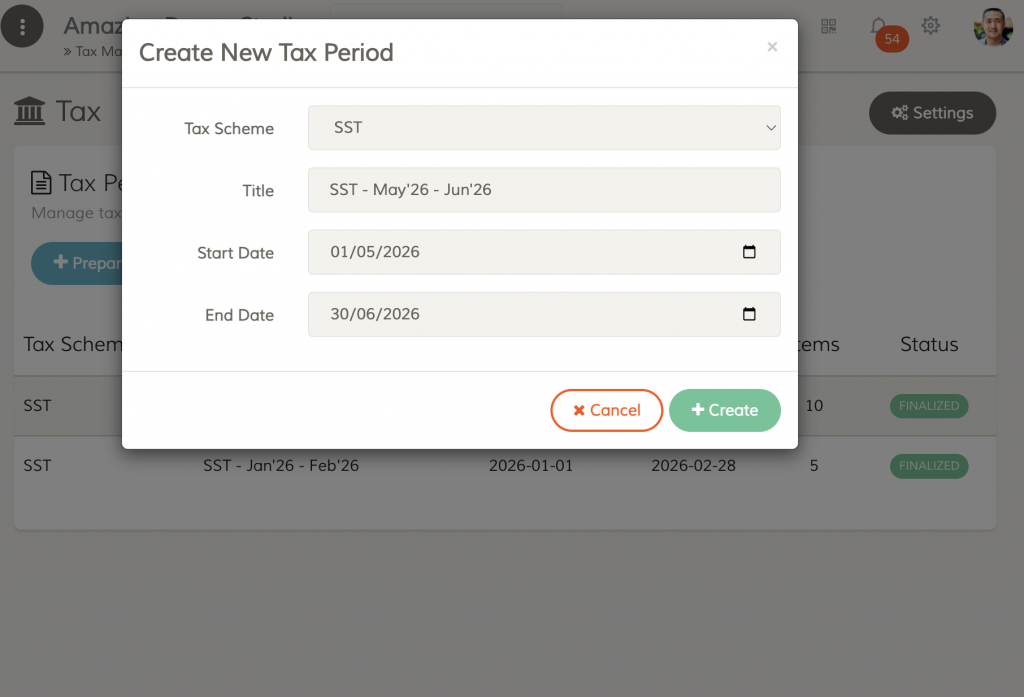
FeePlus uses the Tax Scheme Settings to ensure the dates match Malaysia’s SST cycle. If no Tax Scheme Settings is configured, FeePlus will fall back to default values:
- Tax Scheme: SST / GST / VAT
- Title: {Tax Scheme} – {tax period}
- Start Date: First day of previous month, or the next day after the most recently created tax period
- End Date: Last day of the same month as the Start Date
Click Create.
The new SST period appears with status PREPARED.
B3. Reviewing a Prepared SST Period
1. Tax Period Report
The Prepared Tax Period Report shows:
- SST date range
- Total taxable items
- SST tax codes
- Net amount, tax amount, total amount
If no taxable items exist:
“No taxable items found.”
2. Warnings Section
FeePlus automatically checks for SST compliance issues.
If any issues are found, they appear in the Warnings Table.
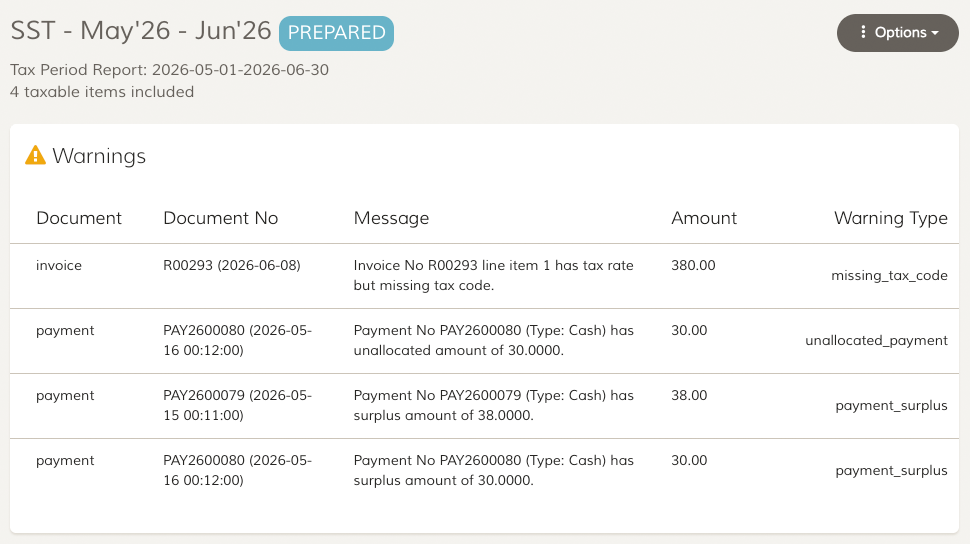
The warnings may include:
Missing SST tax codes
Invoice line item has a tax rate but no SST tax code.
Invalid SST rates
Zero SST percentage but with tax code applied.
Unallocated payments
Payment not linked to any invoice (Payment Tax Point Basis only).
Surplus payments
Payment amount exceeds the invoice amount (Payment Tax Point Basis only).
Recheck Again
After resolving all items in the Warnings section, you can recheck the SST period by clicking:
Options → Prepare
This regenerates the Prepared Tax Period Report and updates the warnings based on your latest changes.
NOTE: You may choose to finalize the SST period directly. Any remaining warnings will be removed once the period is finalized.
If the SST Period is Clean
Once all issues are resolved, the warnings section will show:
“No warning found. You can finalize the tax period now.”
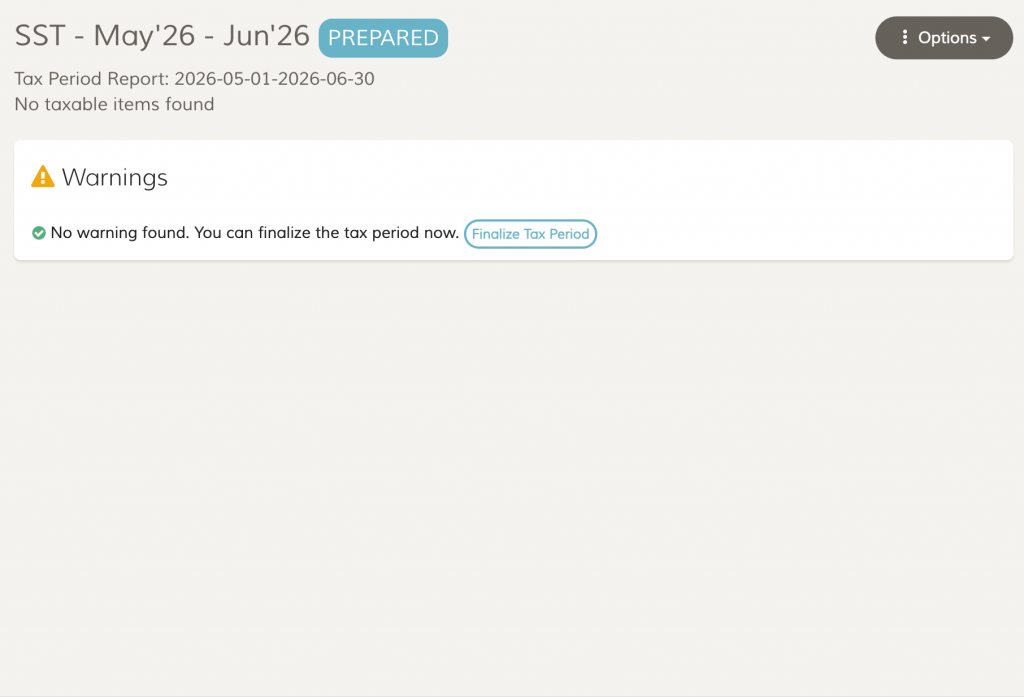
At this point, the Finalize Tax Period button will be shown and you can safely finalize the SST period and lock the records.
B4. Finalizing the SST Period
Click Finalize Tax Period or Options → Finalize.
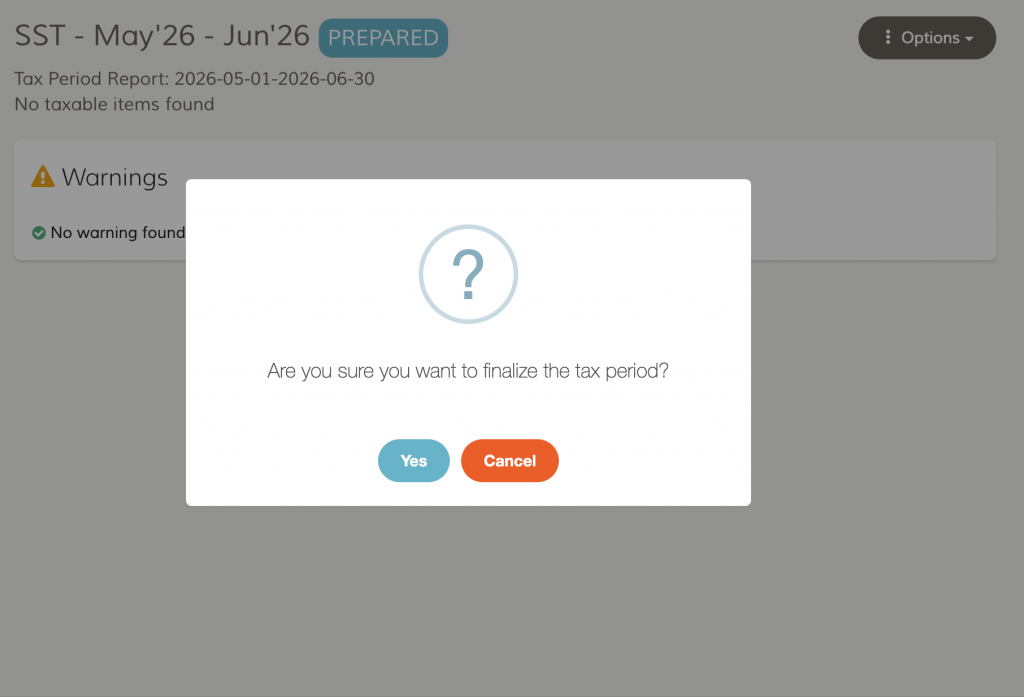
You will see a confirmation dialog:
Are you sure you want to finalize the tax period?
Click Yes.
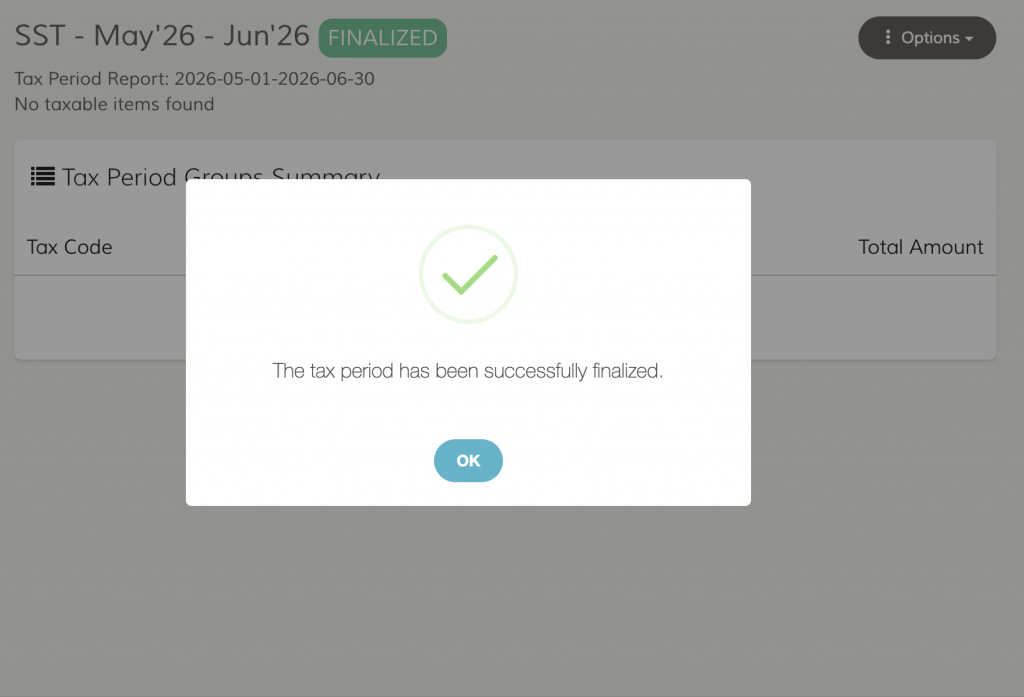
FeePlus locks the SST period and shows:
The tax period has been successfully finalized.
Malaysia SST Note
- Finalized periods cannot be edited — only deleted.
- New invoices cannot be created within a finalized tax period.
- If an SST Tax Code with Payment Tax Point Basis is used (for example, Service Tax), any payment dated within this finalized SST period cannot be created or edited, because the tax point for SST has already been closed.
B5. Viewing a Finalized SST Period
1. Tax Period Groups Summary
Grouped by SST tax code:
- Tax Code
- Net Amount
- Tax Amount
- Total Amount
If empty:
“No tax period groups found.”
Using These Values for Malaysia SST‑02 Return
The figures shown in the Tax Period Groups Summary correspond directly to the fields required in the Malaysia SST‑02 Return form.
How to map FeePlus values to SST‑02:
Net Amount
Use this value to fill in the taxable value for the relevant SST tax code section in SST‑02.
Tax Amount
This value is used to fill in the SST payable amount for the corresponding tax code.
Total Amount
This is the combined total (Net + SST) and is useful for internal reconciliation, but SST‑02 primarily requires Net Amount and Tax Amount.
Example (Service Tax 8%)
If FeePlus shows:
- Tax Code: SV-G ‑ 8%
- Net Amount: RM 12,000
- Tax Amount: RM 960
You would enter:
- RM 12,000 under “Taxable Services”
- RM 960 under “Service Tax Payable”
Important Notes
- Each SST tax code in FeePlus corresponds to a specific section in SST‑02.
- If multiple SST codes exist (e.g., different service categories), enter each one separately in SST‑02.
- Always cross‑check the Tax Amount with your SST rate (e.g., 6%) to ensure accuracy before submission.
2. Options Menu
You can:
- Download Report — formatted SST report
- Download Raw Data — transaction-level audit data
- Delete — remove the SST period (finalized only)