
To use MyInvois Portal for e‑invoicing, you must first ensure your company is registered in MyTax and linked to the portal. This guide walks you step by step through how to add your company in MyTax.
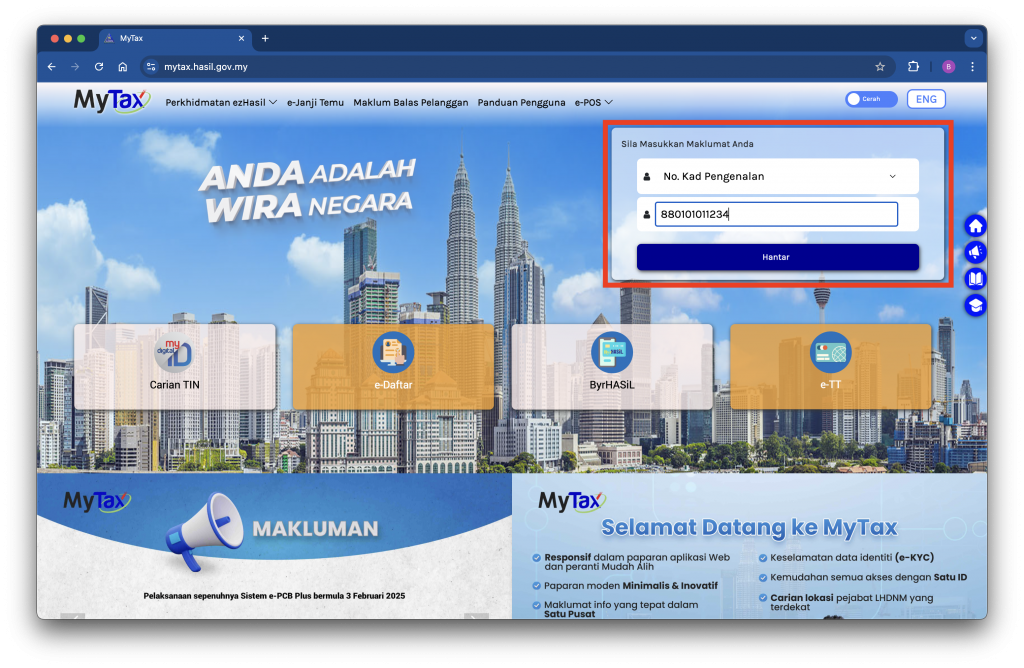
Step 1: Login to MyTax
- Visit https://mytax.hasil.gov.my.
- Sign in using your Identification Card Number and password.
Step 2: Go to Your Profile Section
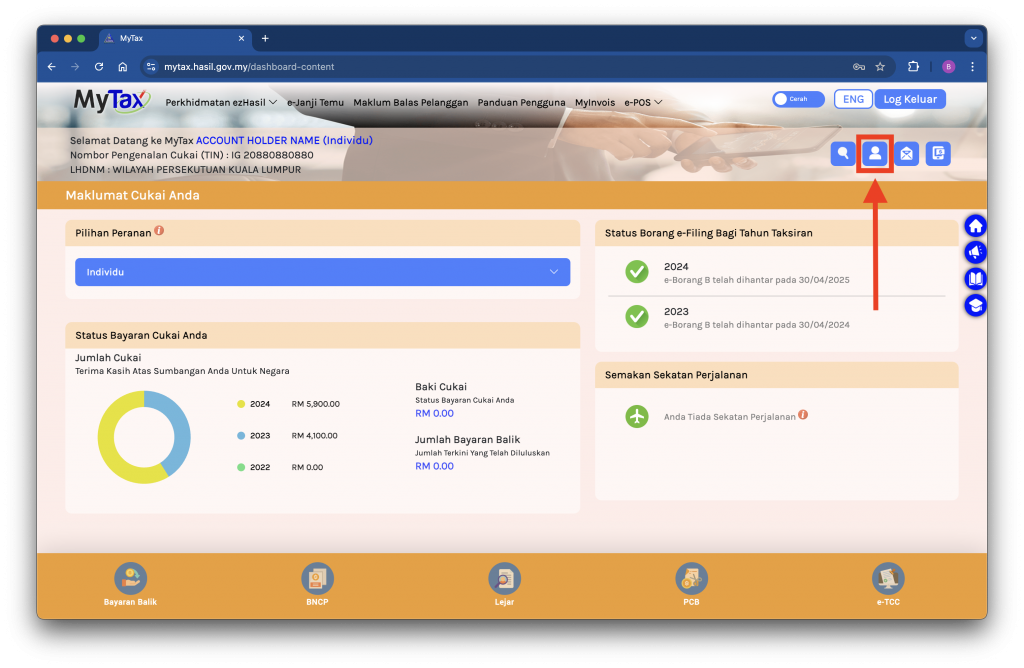
- Once logged in, click the Profile button at the top right of the main screen.
Step 3: Apply for a Role
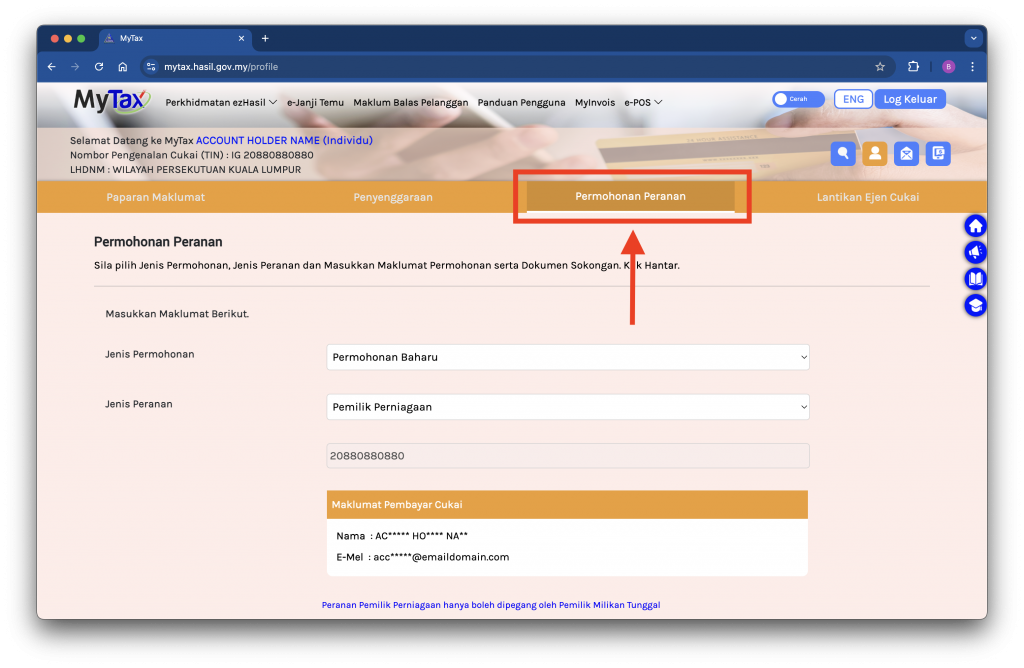
- Click the Role Application (Permohonan Peranan) tab.
- Select New Application (Permohonan Baharu) under Type of Application (Jenis Permohonan).
- Choose the appropriate Type of Role (Jenis Peranan) based on your business type:.
| Company Type | Type of Role |
|---|---|
| Sole Proprietorship | Business Owner (Pemilik Perniagaan) |
| Private Limited Company (Sdn Bhd) | Directors of the company / Organization Administrator (Pengarah Syarikat / Pentadbir Organisasi) |
Note: For private limited companies, you will need to enter your company’s TIN number.
Step 4: Upload Supporting Document
Upload any one of the following document:
Sole Proprietorship
- Copy of business registration certificates; OR
- Copy of the identification card for sole proprietorships without a business registration certificate.
Private Limited Company (Sdn Bhd)
- Copy of company / co-operative society / labuan entity / association / organization registration certificate; and
- Copy of the list of company directors / committee members of the Co-operative society / Trust deed / PLT / Association from SSM or a legitimate registration body;
- If the authorized individual is not listed as mentioned above, additional documents need to be uploaded:
- Authorization letter with Company’s / Organization’s letterhead signed by the Board of Directors of the Company / Organization
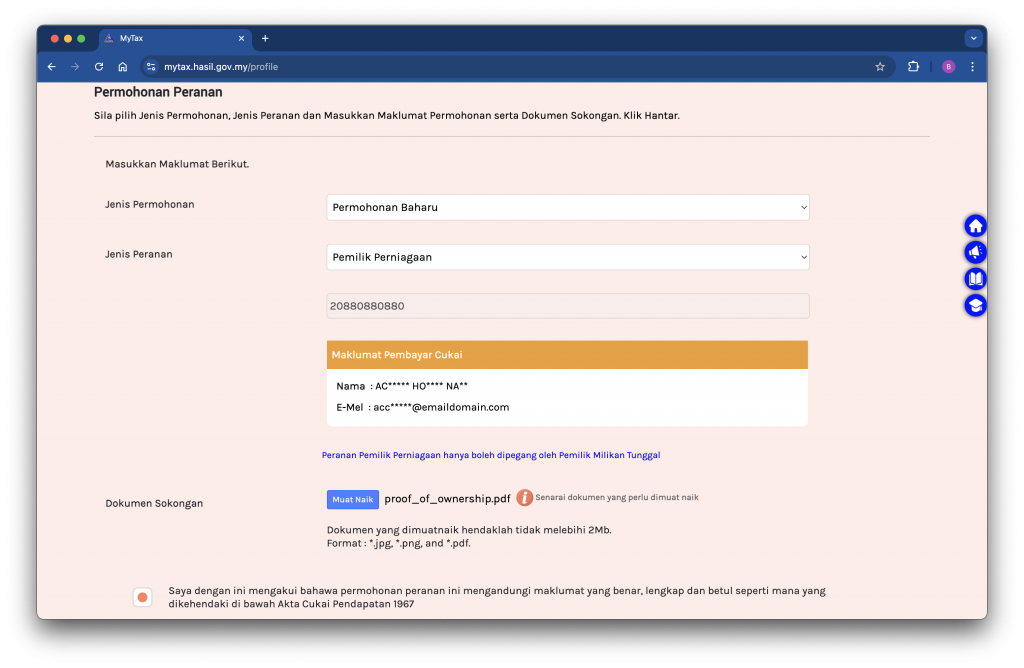
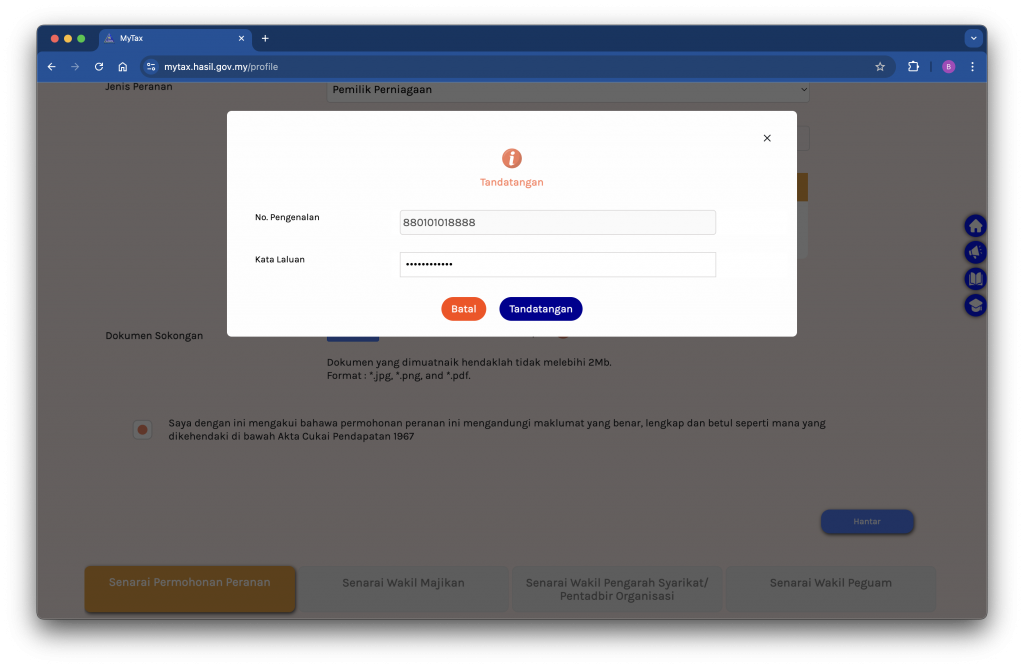
Step 5: Submit and Sign
- Click Submit.
- Enter your MyTax password to digitally sign and confirm the submission.
Completion
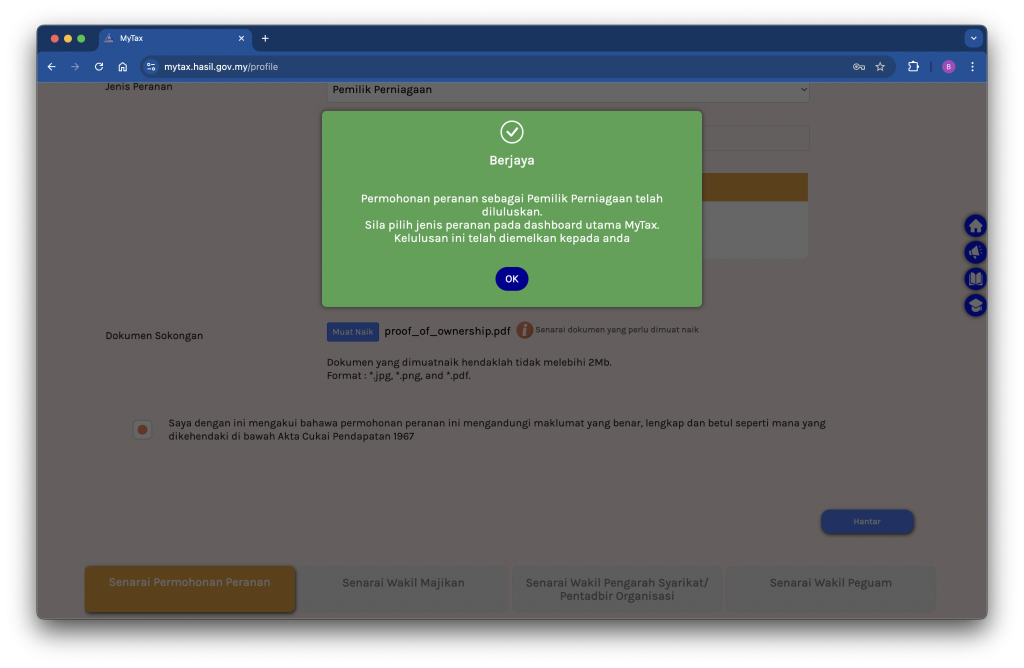
Once you have signed the submission, a success dialog box will appear like the screen shot above. Please note: this does not mean you can immediately access your business operations in MyTax or the MyInvois Portal. There is usually a lead time of a few hours before the company information appear in MyTax, and it will then be synchronized to the MyInvois Portal.
Step 6: Confirm Your Business has been Added
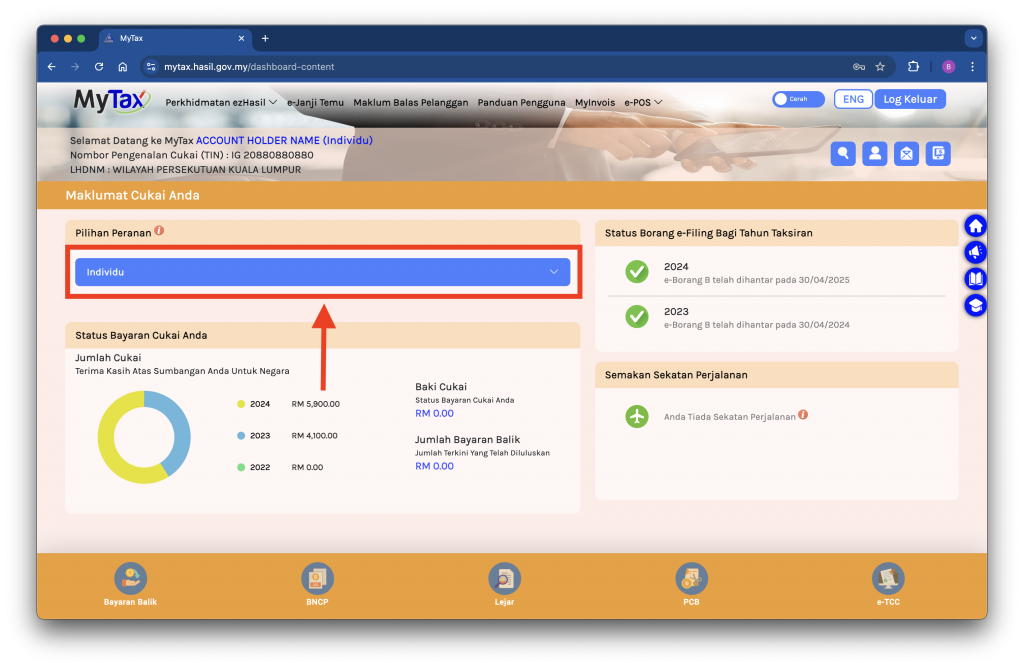
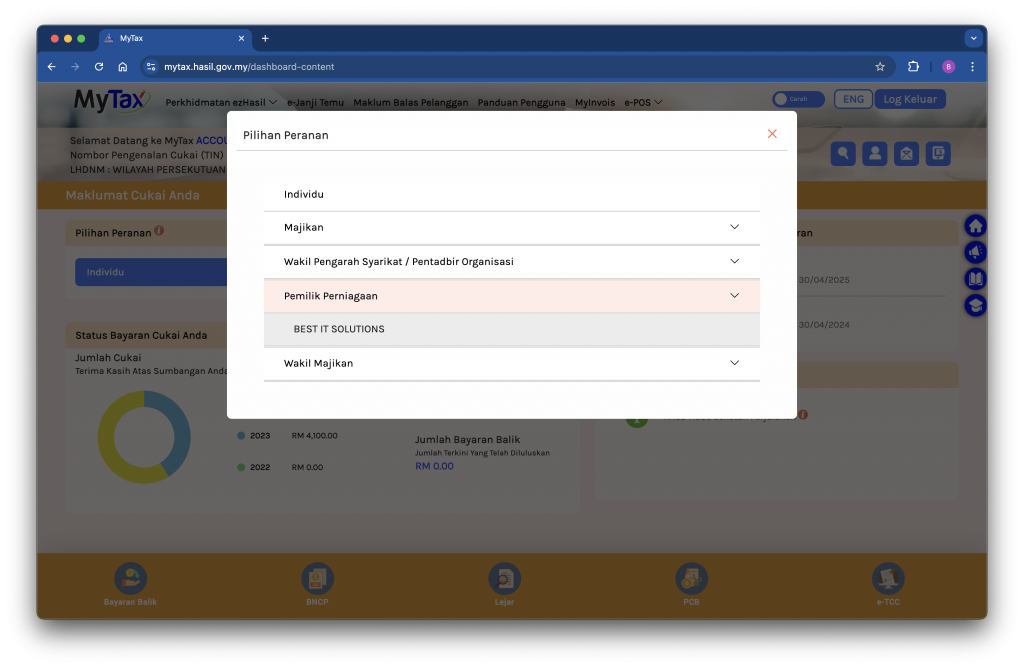
- On the MyTax home page, click the blue selection in the Role Selection (Pilihan Peranan) section.
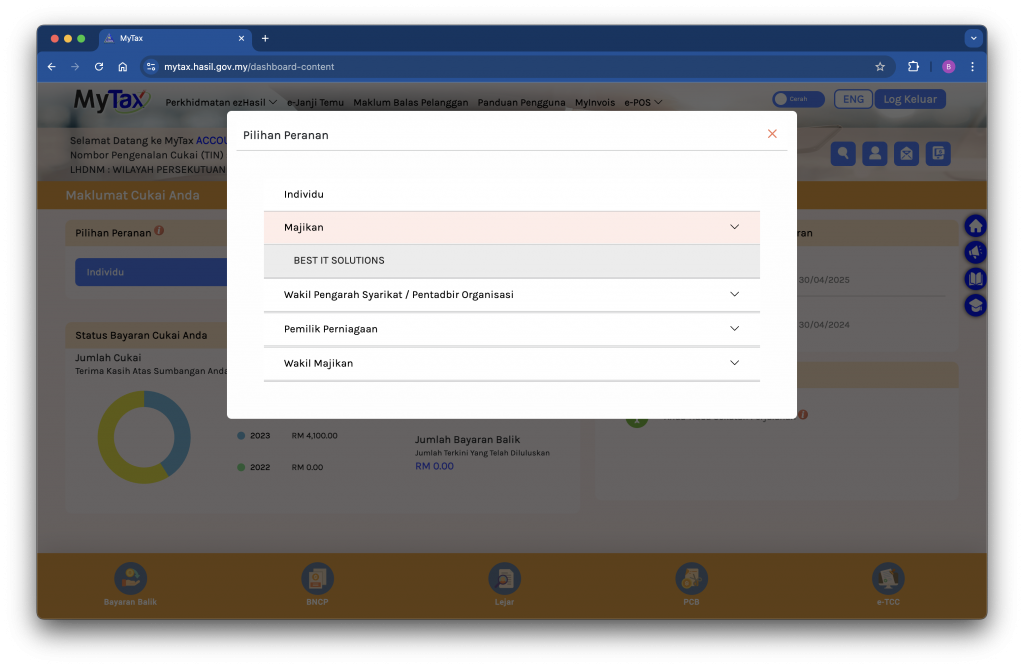
- If your company is listed, it has been successfully added.
- For companies, the business name will appear under Company Director / Organization Administrator (Wakil Pengarah Syarikat / Pentadbir Organisasi) and Employer Representative (Wakil Majikan) roles.
Sandbox Environment (Pre-production MyTax)
For sandbox environment (https://preprod-mytax.hasil.gov.my), the steps are the same as above.
Next: Register in MyInvois Portal
After adding your business in MyTax, there is still a lead time before it appears in the MyInvois Portal. Once visible, you must complete registration in MyInvois Portal before you can fully access your company profile. Continue with [How to Add a Company in MyInvois Portal].