
Before you can issue e‑invoices in the MyInvois Portal, your company must be registered and linked from MyTax (https://mytax.hasil.gov.my). If you haven’t added your company in MyTax yet, see How to Add a Company in MyTax →.
This guide walks you through adding your company in the MyInvois Portal step by step.
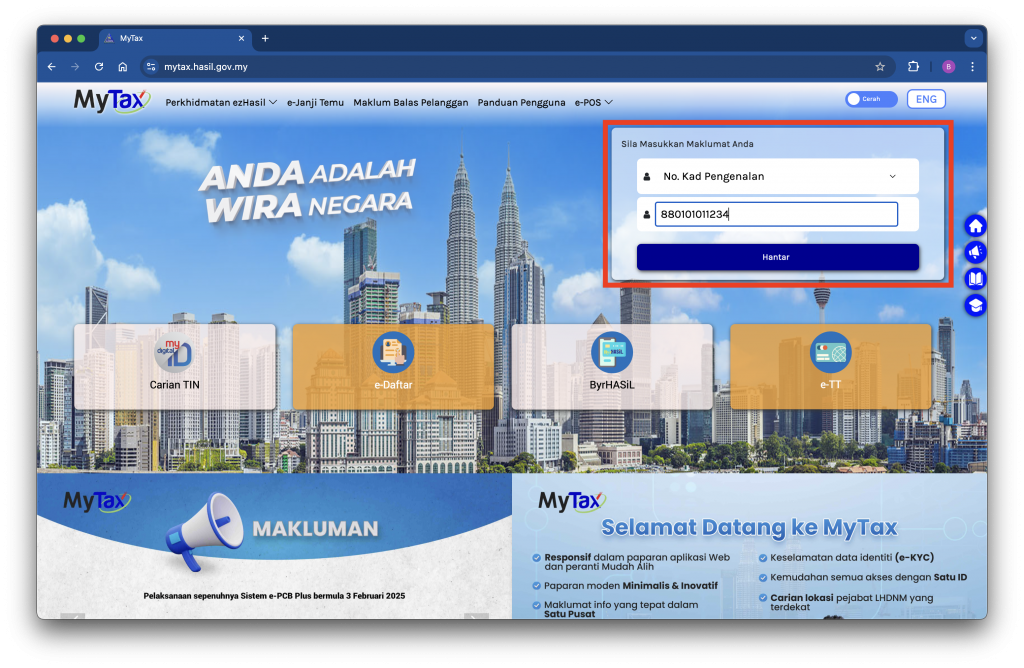
Step 1: Log in to MyTax
- Visit https://mytax.hasil.gov.my.
- Sign in using your Identification Card Number and password.
Step 2: Access the MyInvois Portal
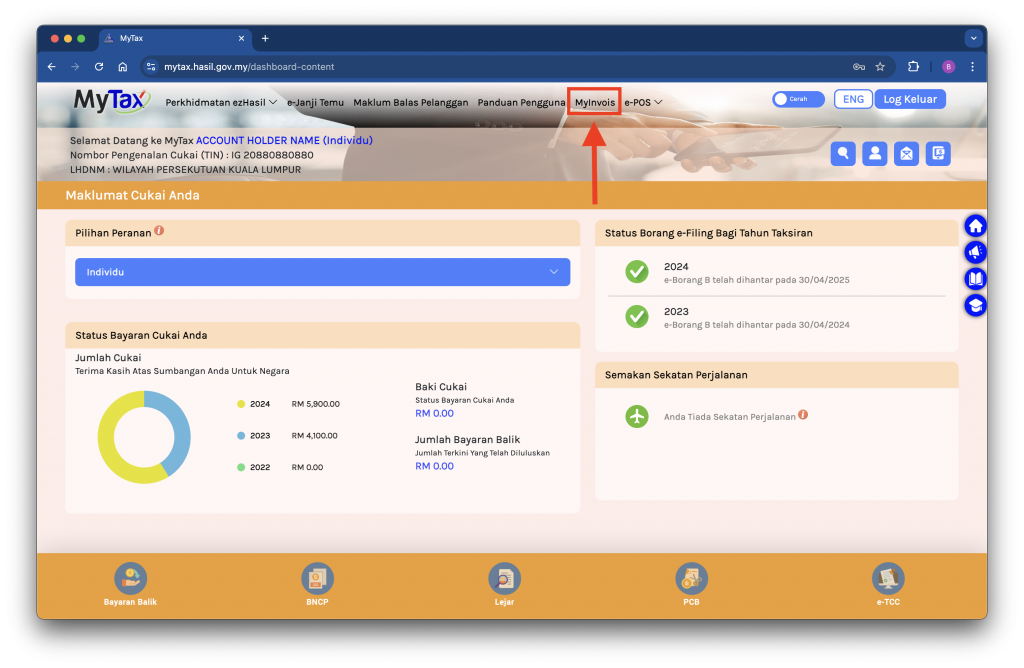
- Once signed in, click the MyInvois menu at the top of the MyTax main page.
- You’ll be redirected to the MyInvois Portal.
Step 3: Switch to Company Account
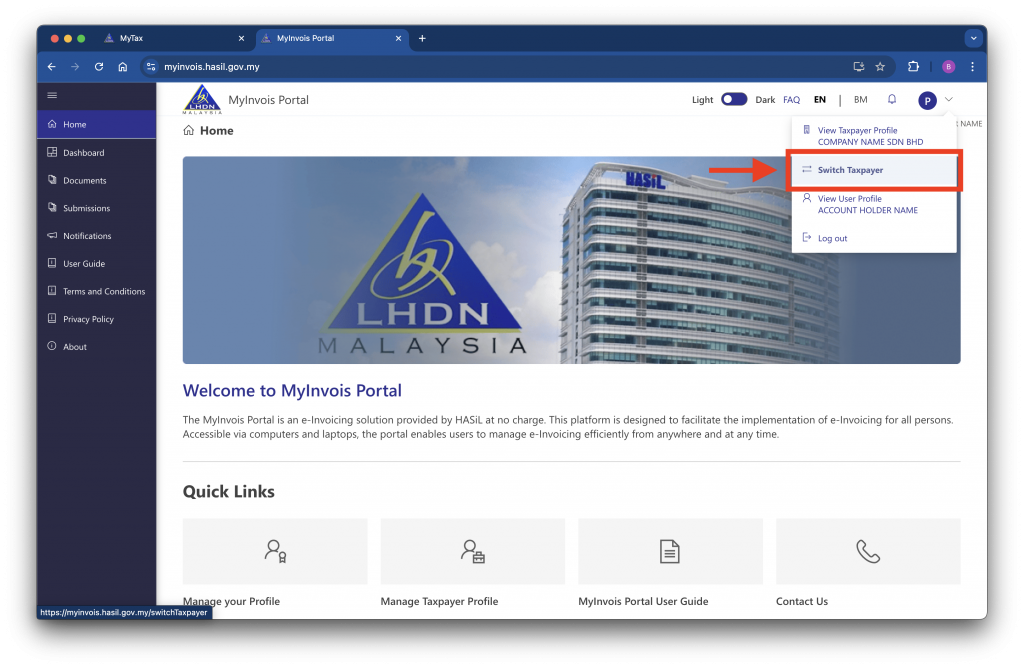
- In the MyInvois Portal, click the Profile icon at the top right.
- Select Switch Taxpayer.
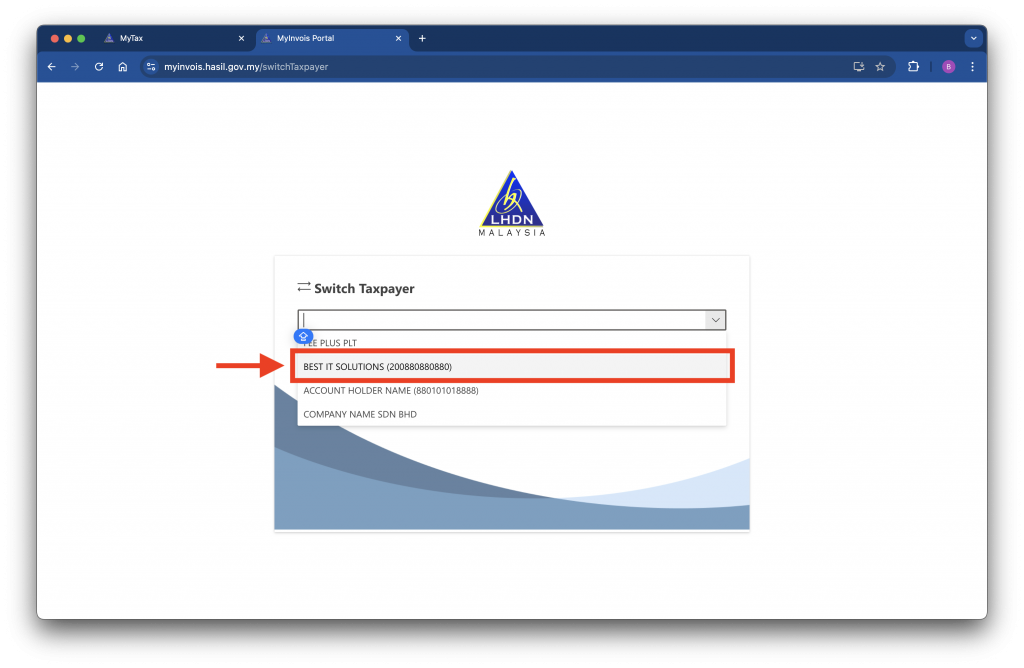
- From the dropdown menu, choose the company you want to add, then click Switch to continue.
Note: If the company does not appear in the list, wait a few hours for it to sync from MyTax. If it still isn’t shown, add the company in MyTax first before registering it in the MyInvois Portal.
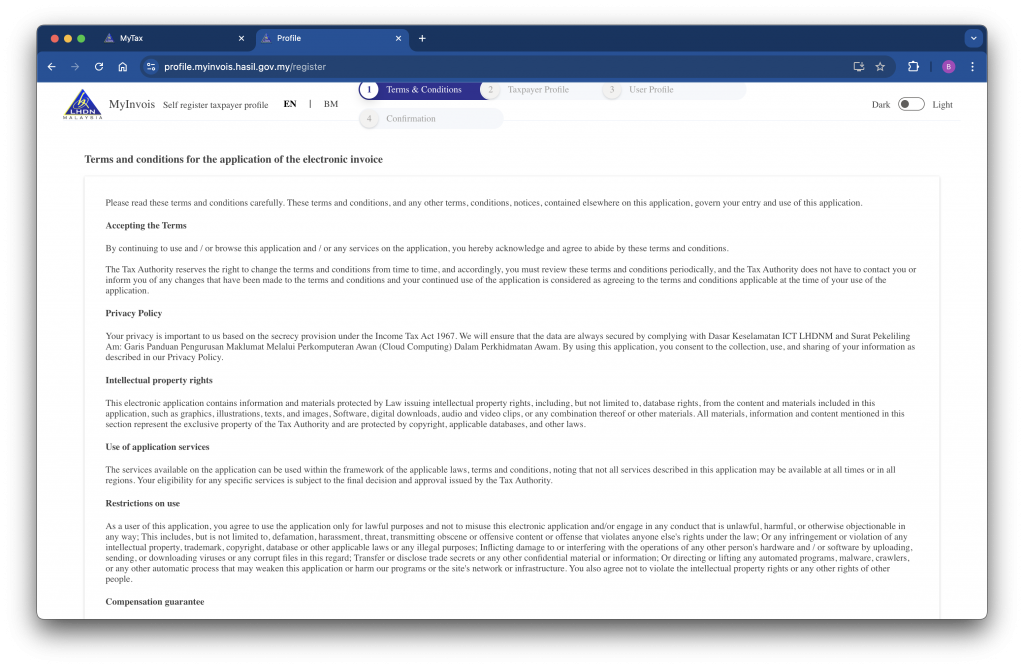
Step 4: Registration Page 1 – Term & Conditions
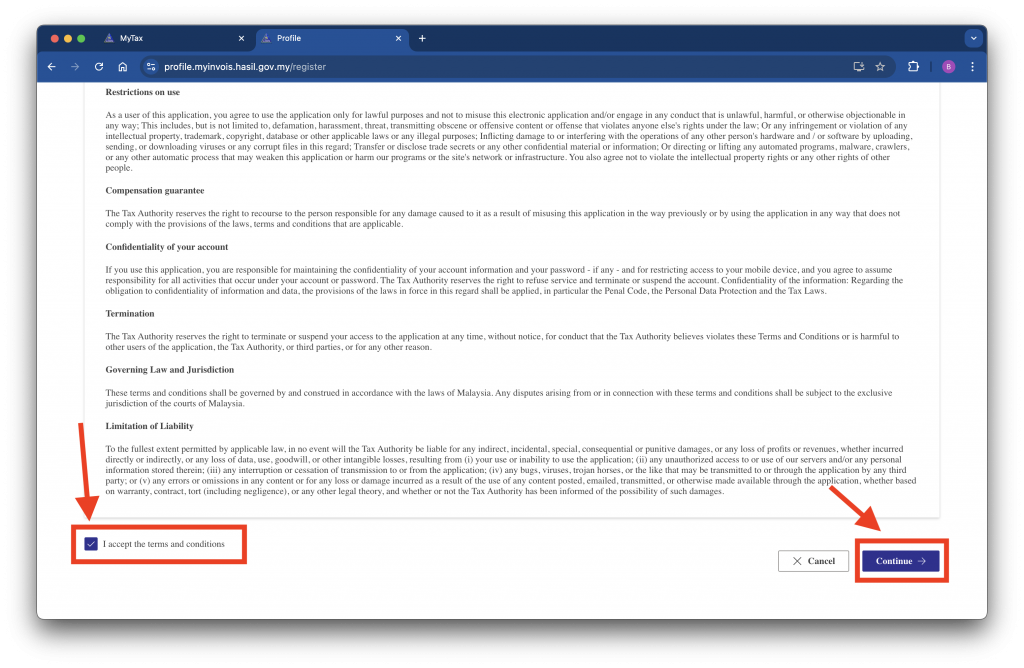
- Read, accept the terms and conditions.
- Click Continue.
Step 5: Registration Page 2 – Taxpayer Profile Details
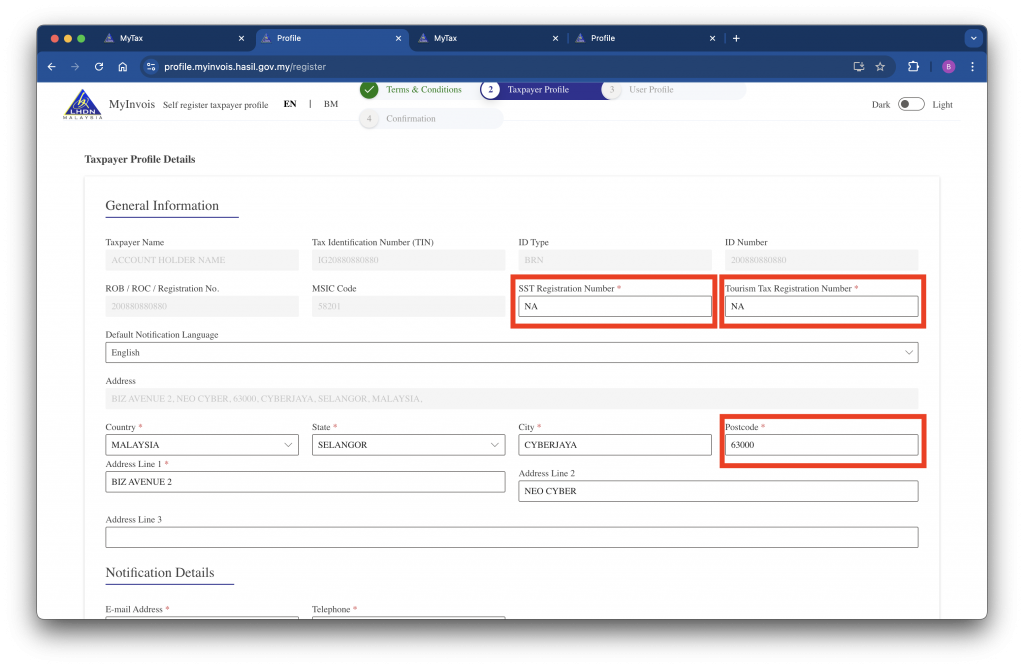
- The system will pre-fill most company information.
- You must complete the following fields:
- SST Registration Number
- Tourism Tax Registration Number
- Postcode
If you do not have SST or Tourism Tax registration numbers, enter NA.
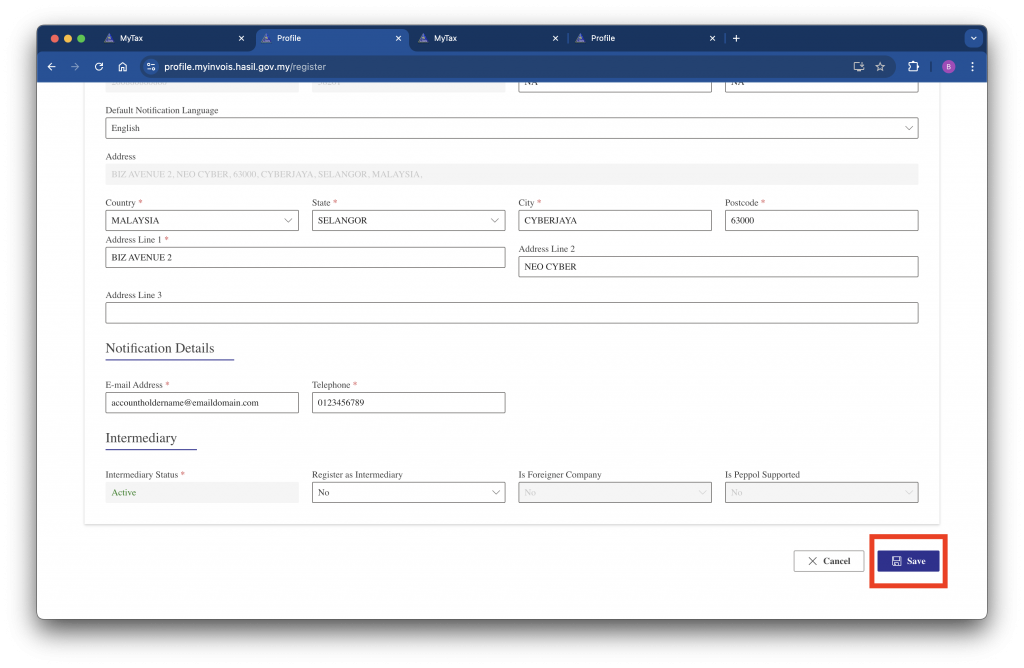
- Click Save to proceed.
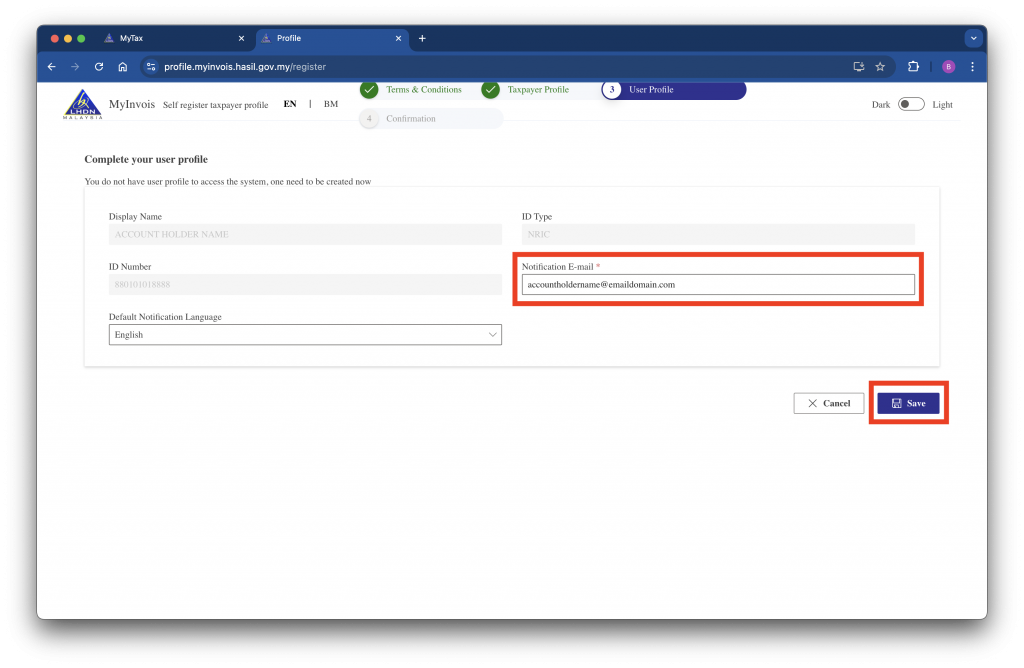
Step 6: Registration Page 3 – User Profile
- Enter your Notification E-mail.
- Click Save.
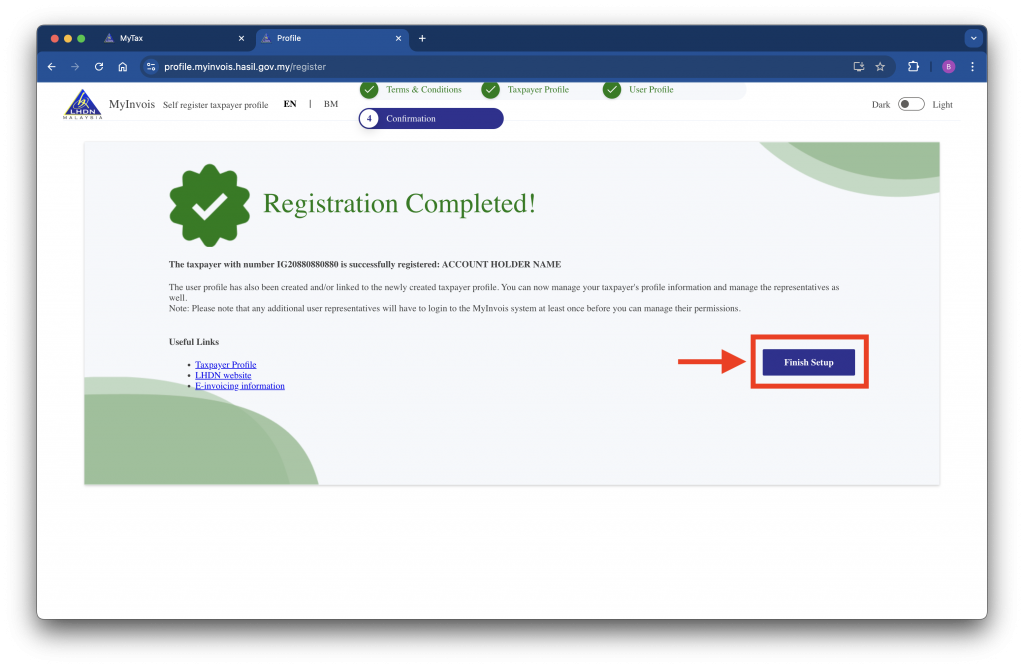
Step 7: Registration Page 4 – Completion
- Click Finish Setup to complete the registration.
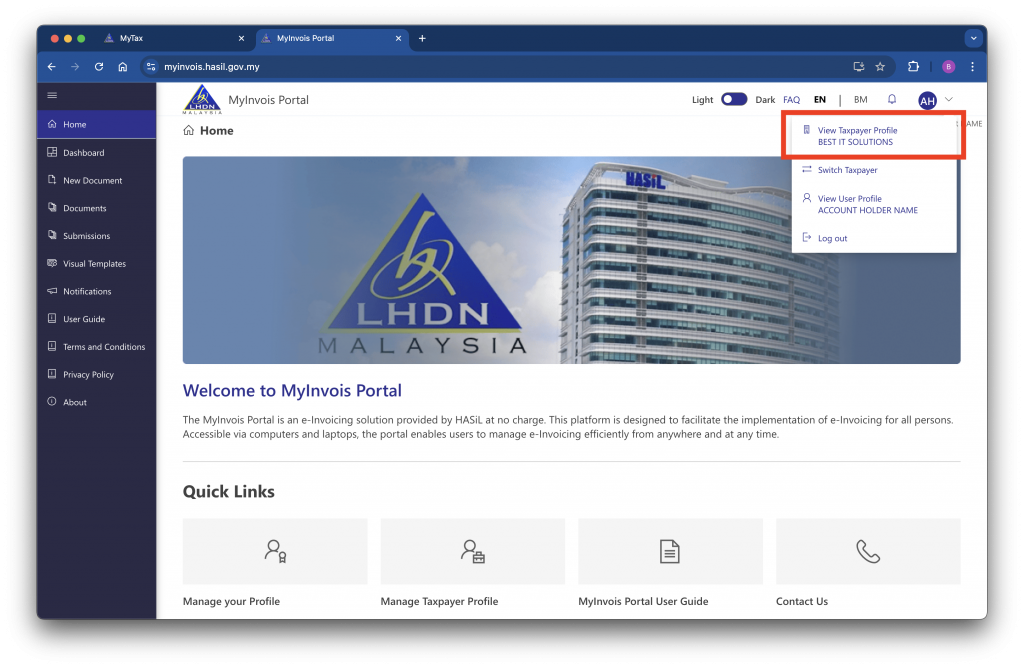
Step 8: Confirm Your Company Has Been Added
- Return to the MyInvois Portal home page.
- Click the Profile icon and select View Taxpayer Profile, or check under Switch Taxpayer.
- Your company name should now appear in the list.
Sandbox Environment (Pre-production MyTax)
For sandbox environment (https://preprod-mytax.hasil.gov.my), the steps are the same.
Next: Add FeePlus as Intermediary
After adding your business in MyInvois Portal, you can now add FeePlus as your intermediary system provider to validate e-invoices. Continue with How to Add Intermediary in MyInvois Portal →.